
Below we guide you through authorising Wherehouse to connect with your Dear/Cin7 Core account.
Steps on Wherehouse 👨💻
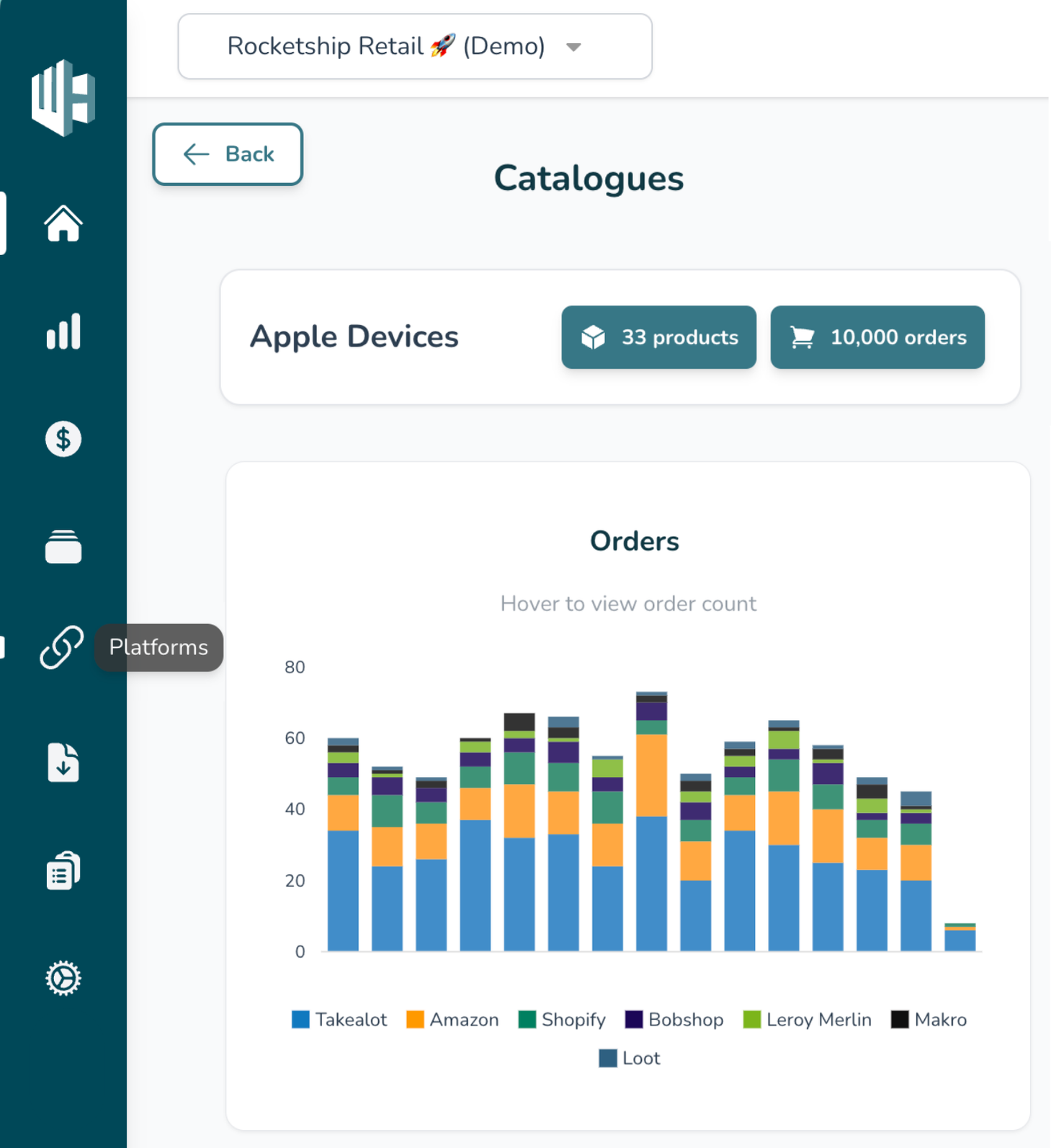
1️⃣ On the Wherehouse dashboard, within the subscription you’d like to authorize, select Platforms from the sidebar.
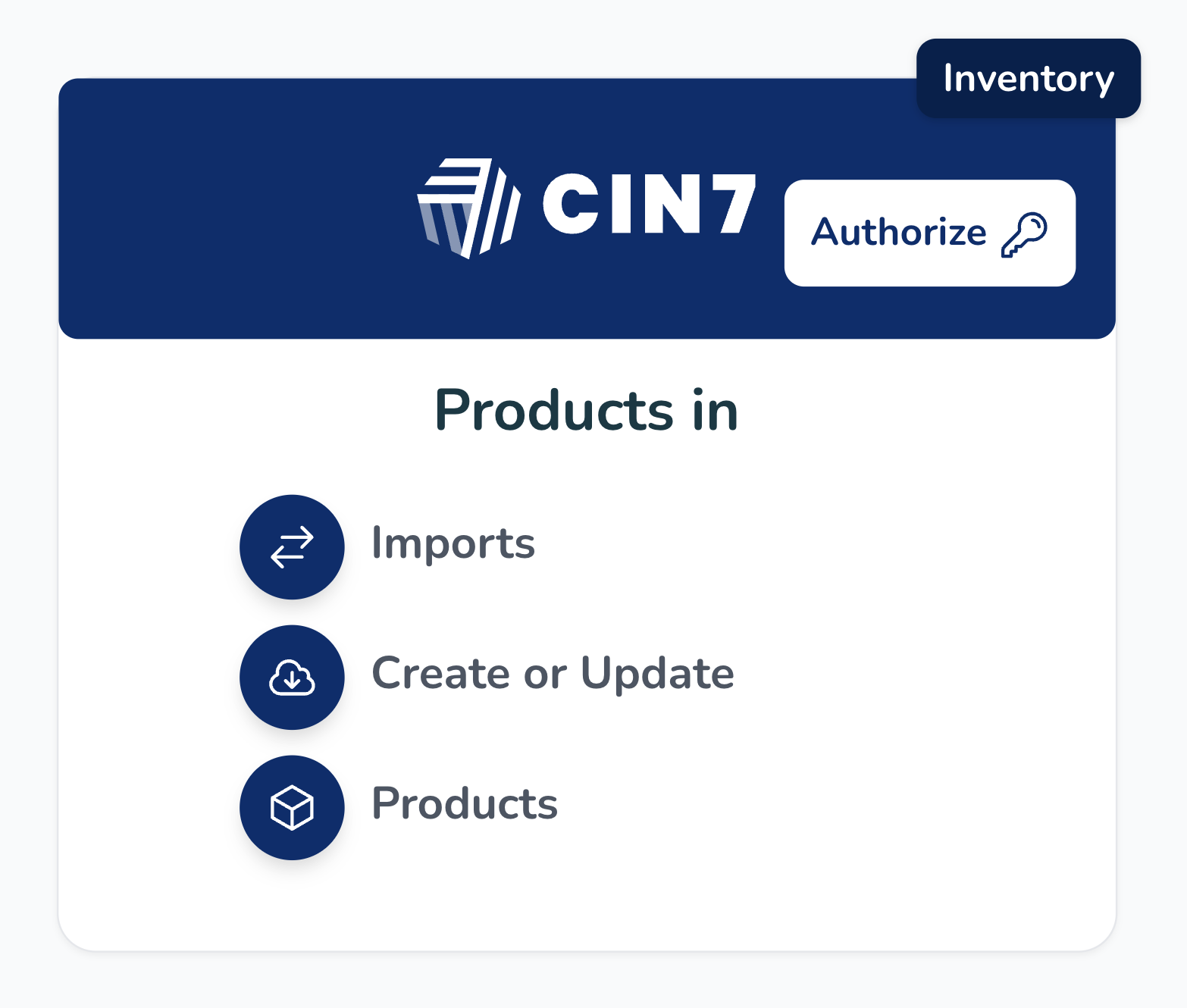
2️⃣ Look for the Cin7 connector(s).
Each account may have multiple depending on the specific requirement, repeat the steps for each.
3️⃣ Click Authorise, this will take you to a modal asking for your account’s
Account ID, and Account Key, more on how to locate that below.Finding the required info on Dear/Cin7 Core 🕵️♂️
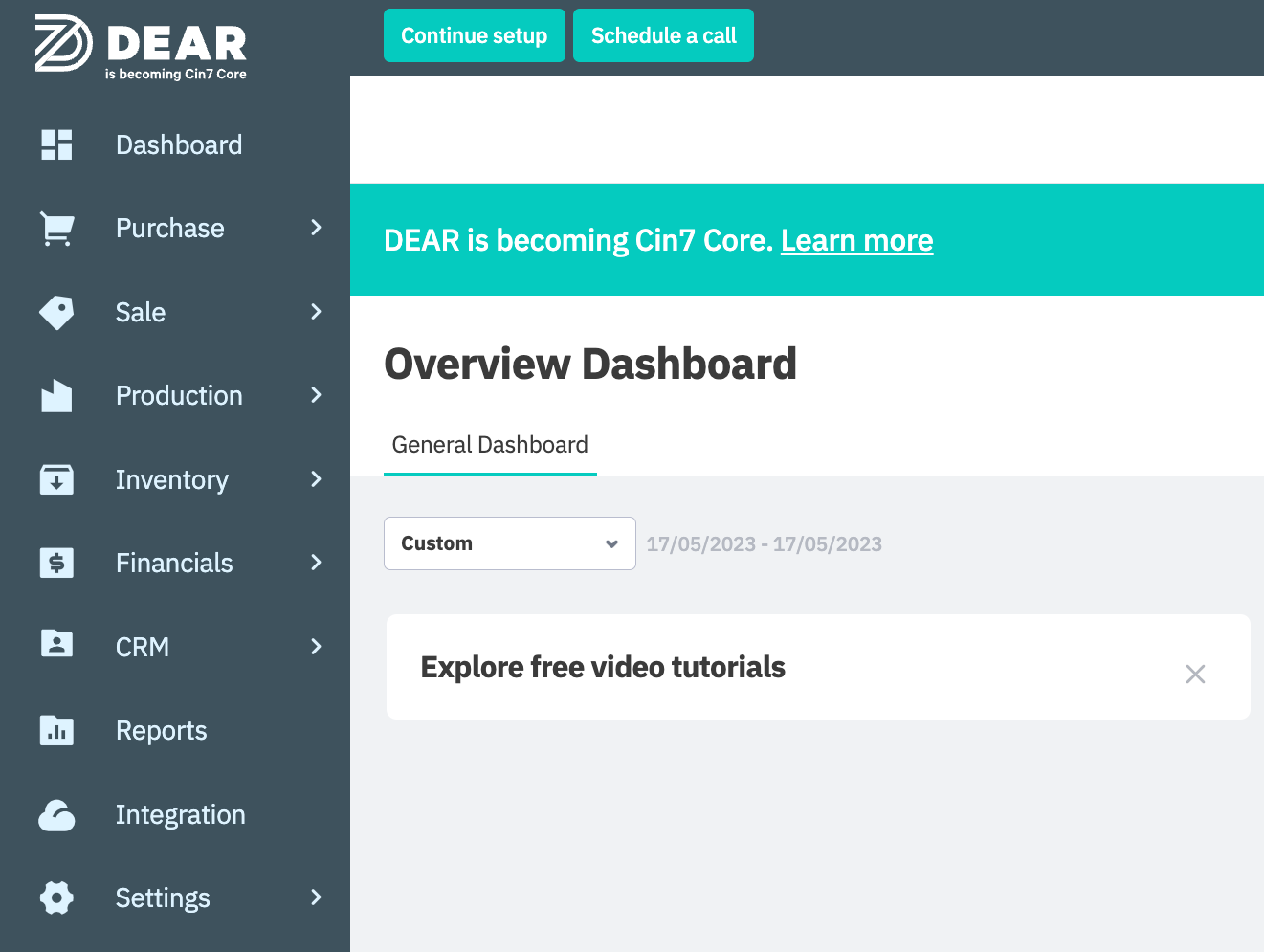
1️⃣ To find the required info, head to your Dear Dashboard.

2️⃣ Click on Integration in the sidebar
bottom left 😉
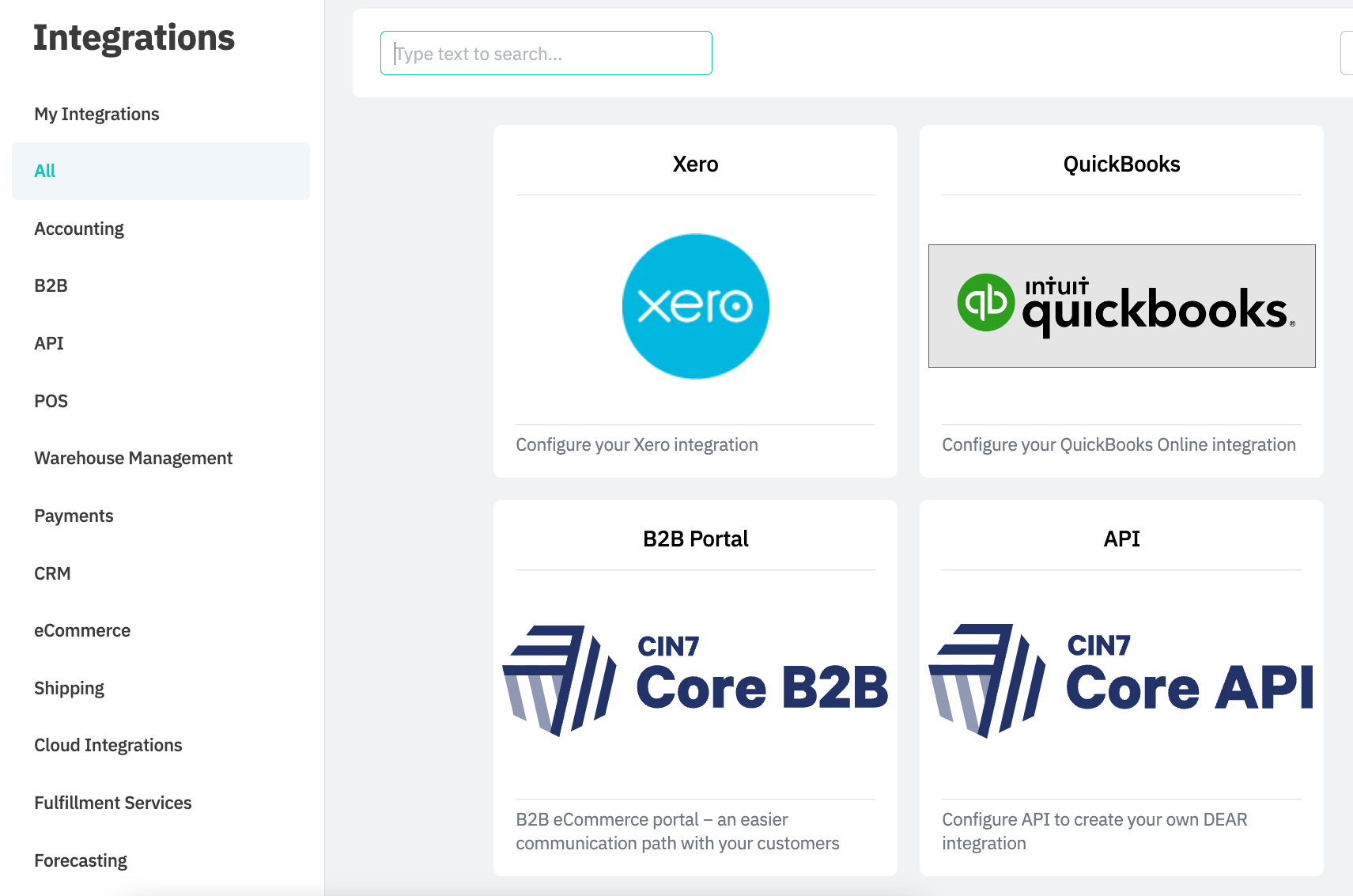
3️⃣ On this page find the Cin7 Core API section
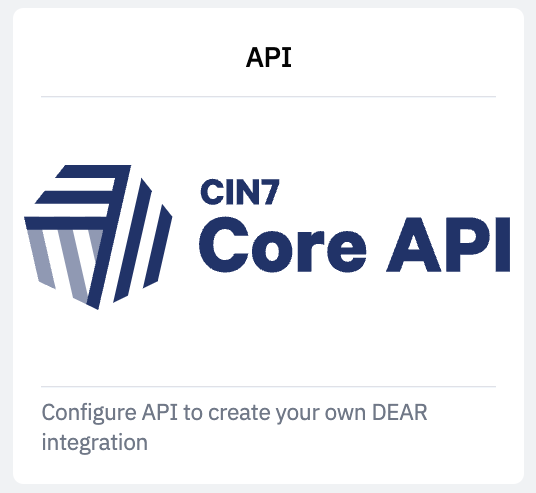
4️⃣ Click "Configure API to create your own DEAR integration”
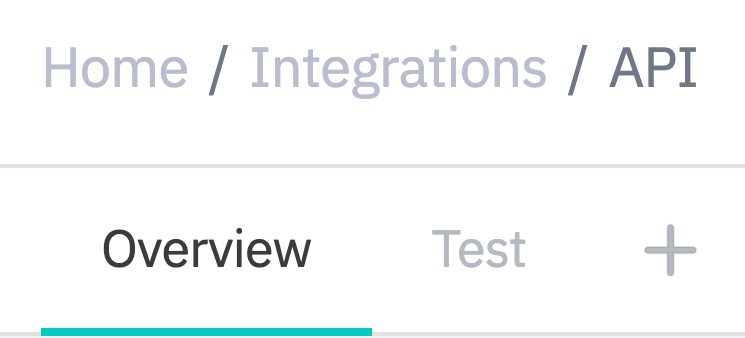
5️⃣ Hit the “+” icon
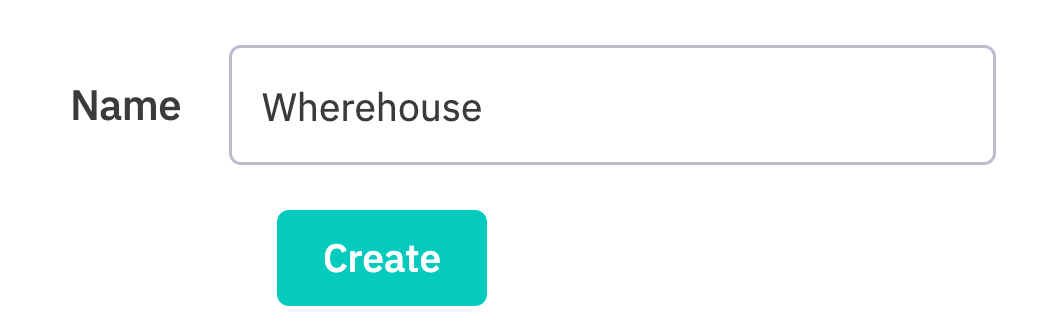
6️⃣ Name the integration “Wherehouse”
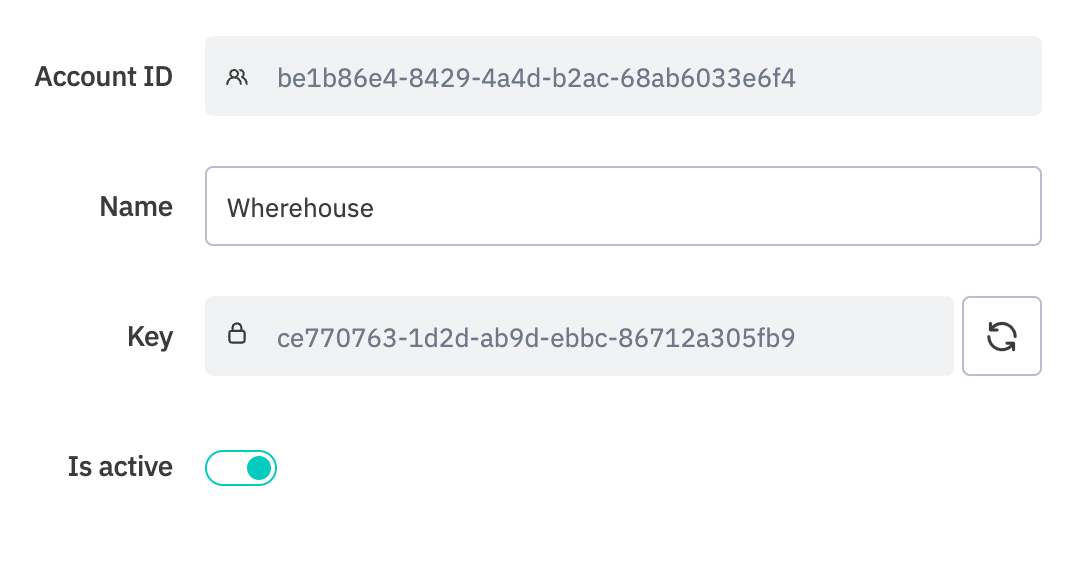
7️⃣ Copy the
Account ID, and Account Key and paste them into the modal on the Wherehouse dashboard.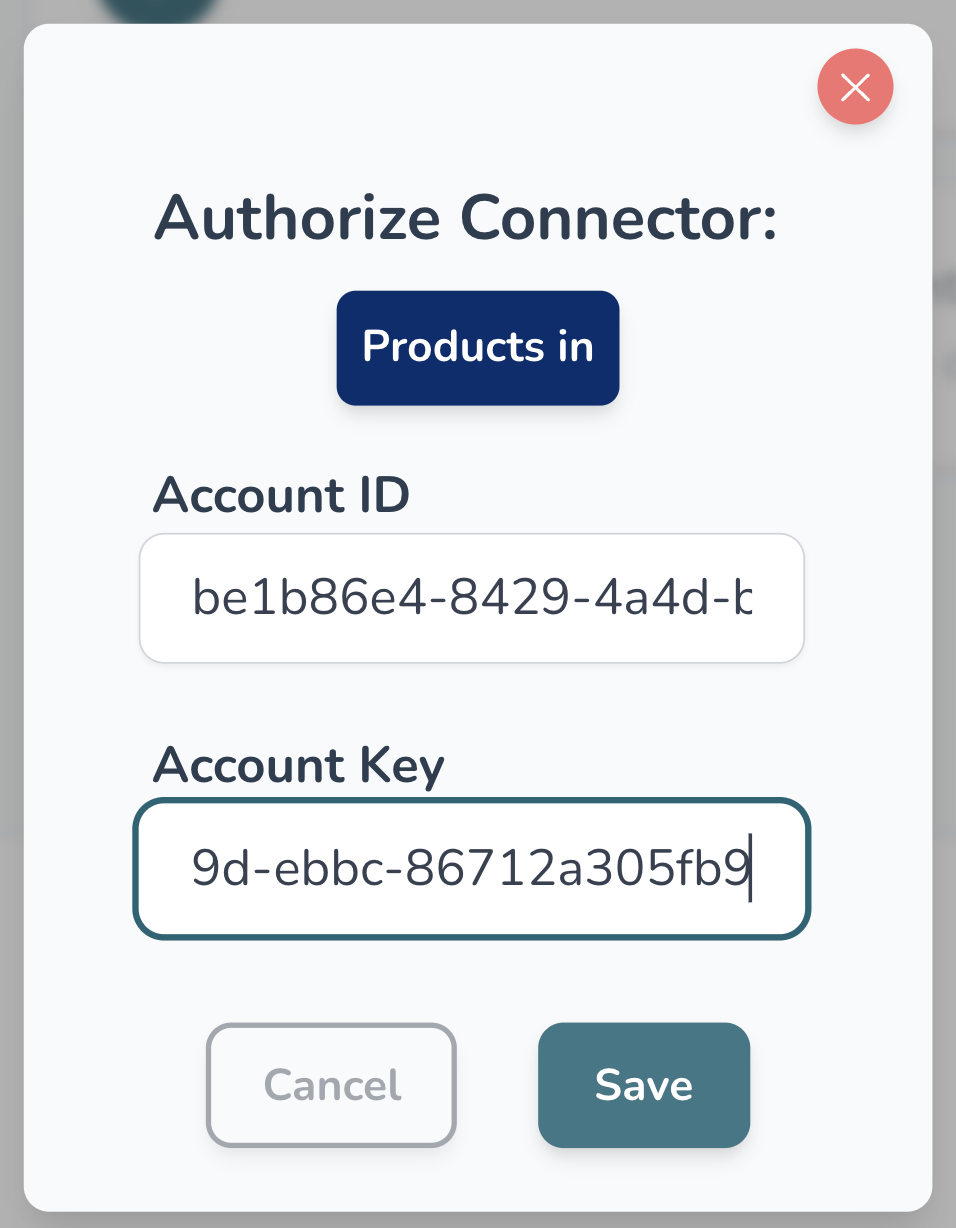
1️⃣ After you’ve pasted the values from Dear into the modal on Wherehouse, hit “Save”
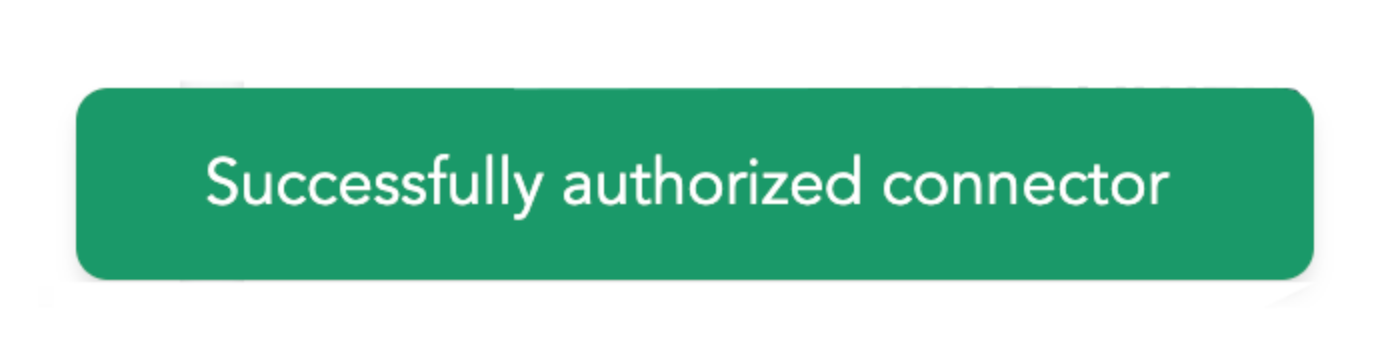
2️⃣ If all went well you should see “Successfully authorized connector”.