
Follow the guide below to connect your Google sheets data feed to Wherehouse.
Steps on Wherehouse 👨💻
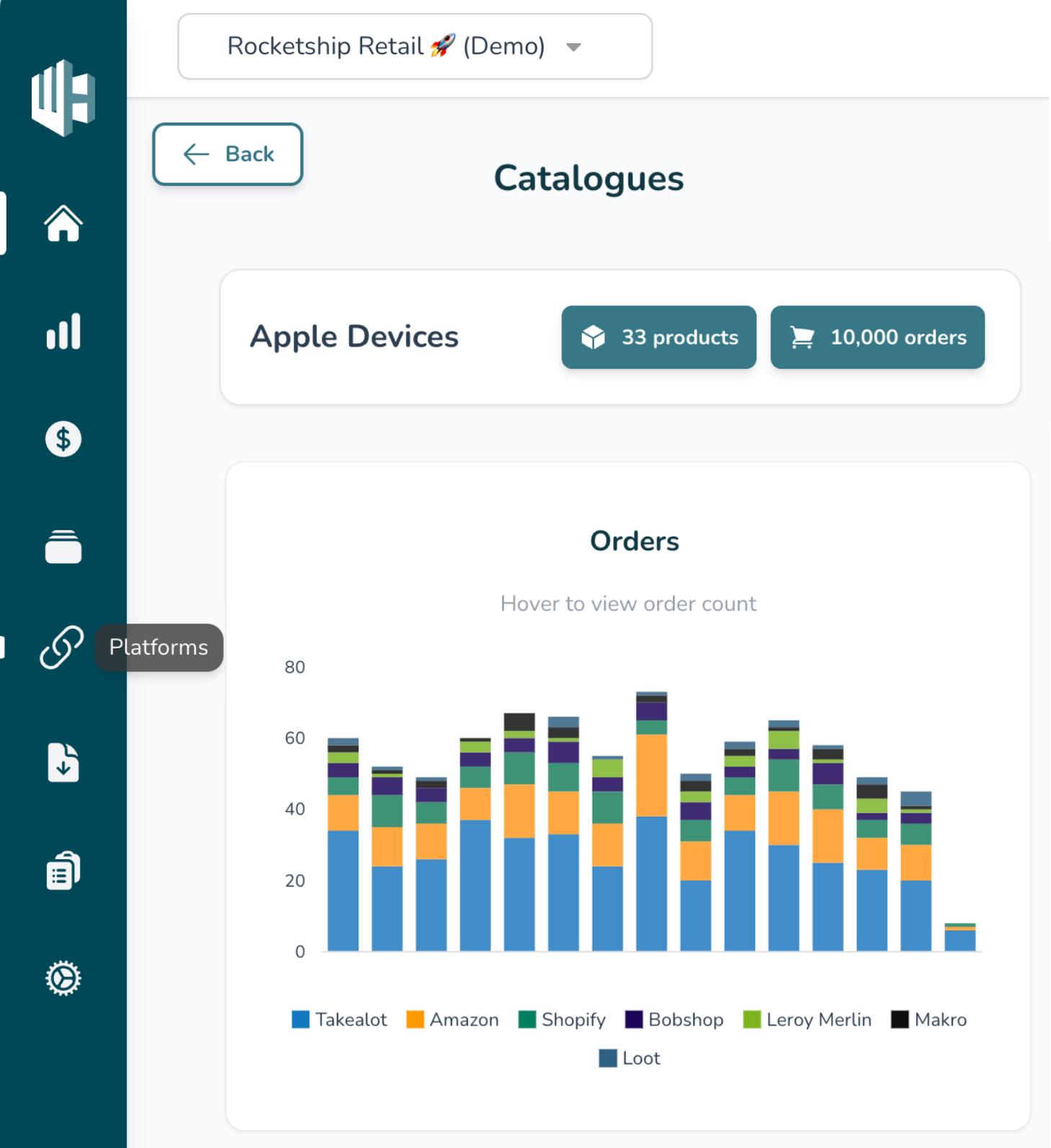
1️⃣ On the Wherehouse dashboard, within the subscription you’d like to authorize, select Feeds from the sidebar.
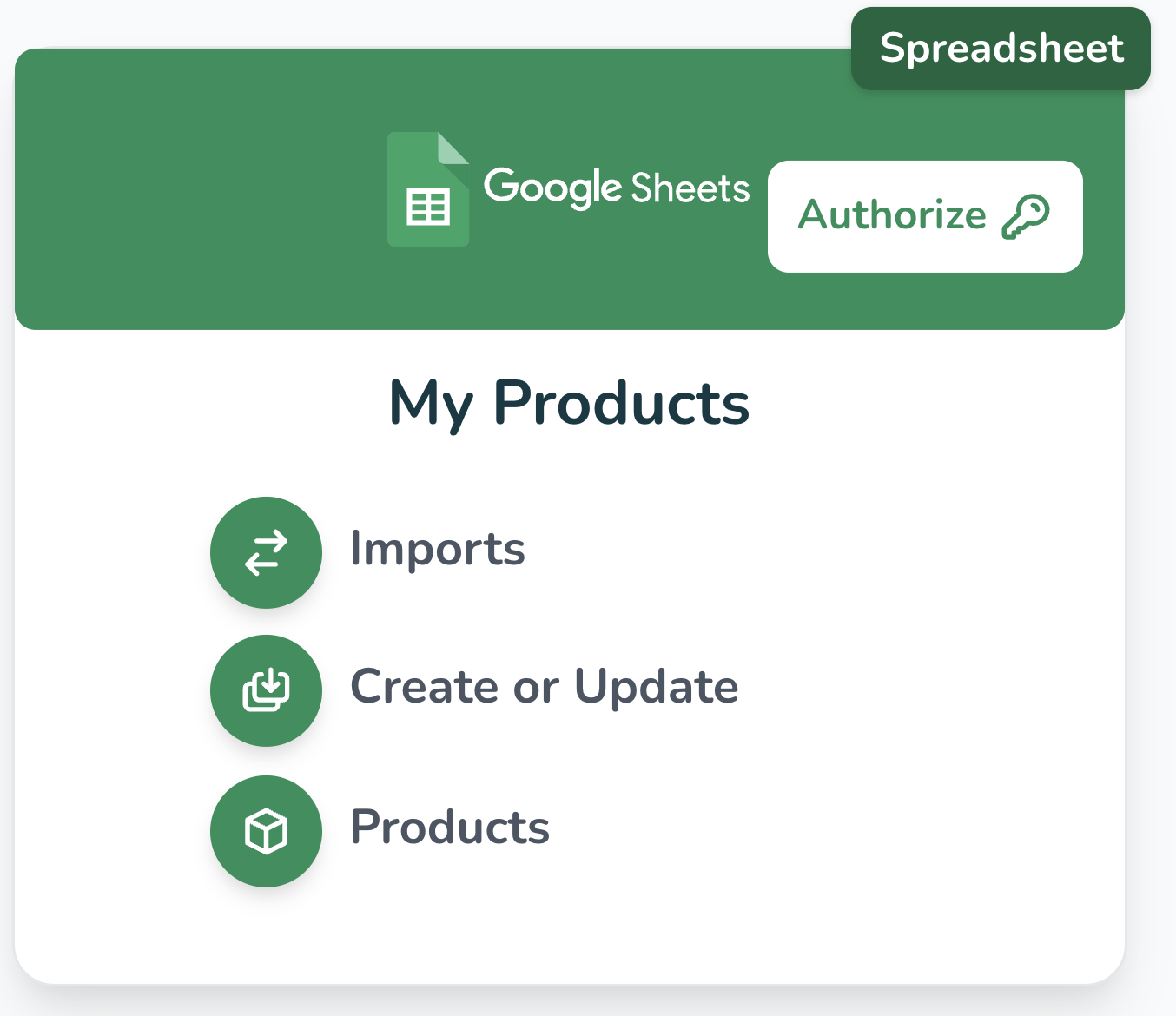
2️⃣ Look for the Google Sheets connector(s).
3️⃣ Click Authorize
This will take you to a modal asking for the following:
Sheet NameFile IDMore on how to find these below.
Steps on Google sheets 📊
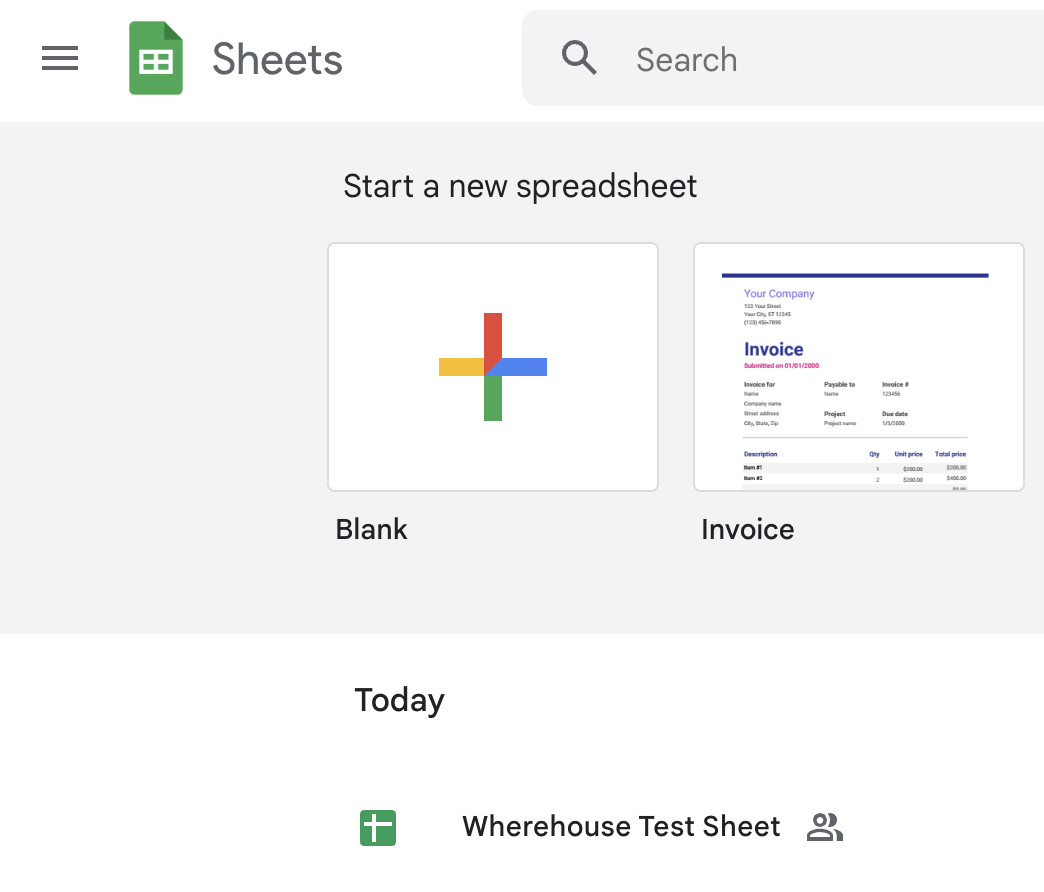
1️⃣ Open the Google Sheet that you want to connect to Wherehouse
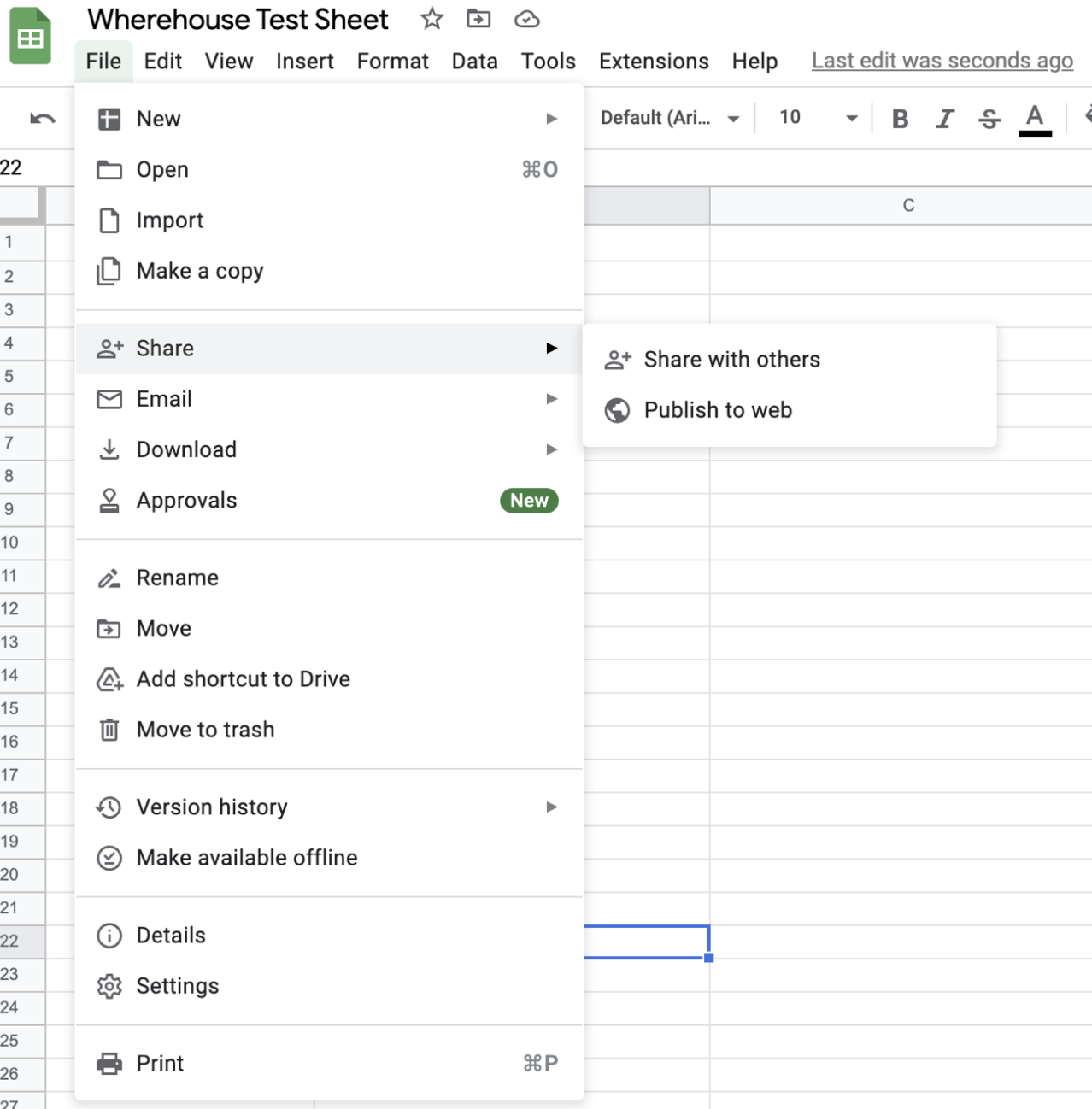
2️⃣ Select
“File” - “Share” - “Share with others”
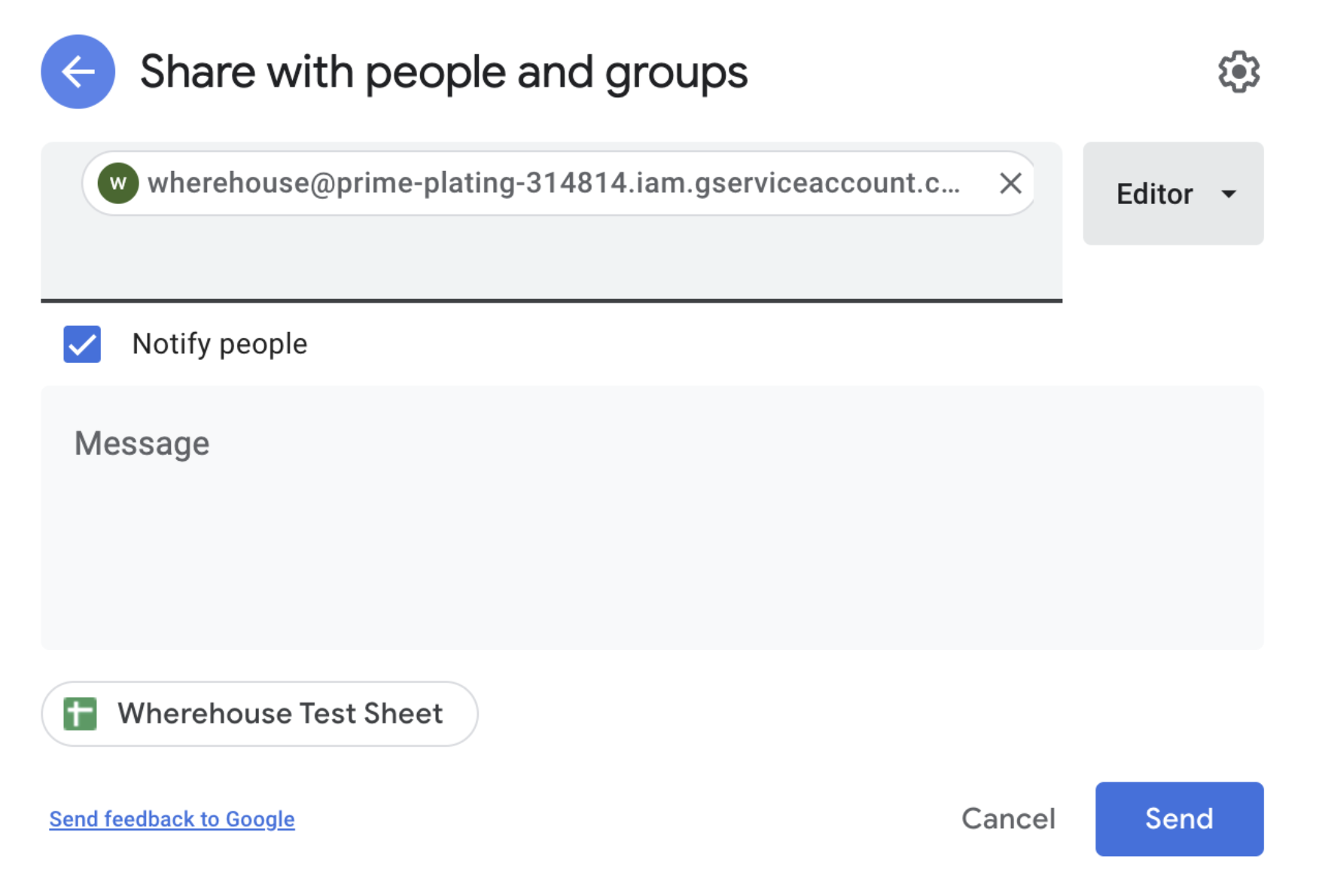
2️⃣ Share the sheet with the following mail address:
wherehouse@prime-plating-314814.iam.gserviceaccount.com
Be sure to select the “editor” permission
3️⃣ To find the
File ID click the URL bar in your browser
Your browser needs to be open on the sheet that you need to connect.
4️⃣ Copy the code that follows after
spreadsheeds/d/ and before /edit#5️⃣ Paste it into the required field on the Wherehouse dashboard.
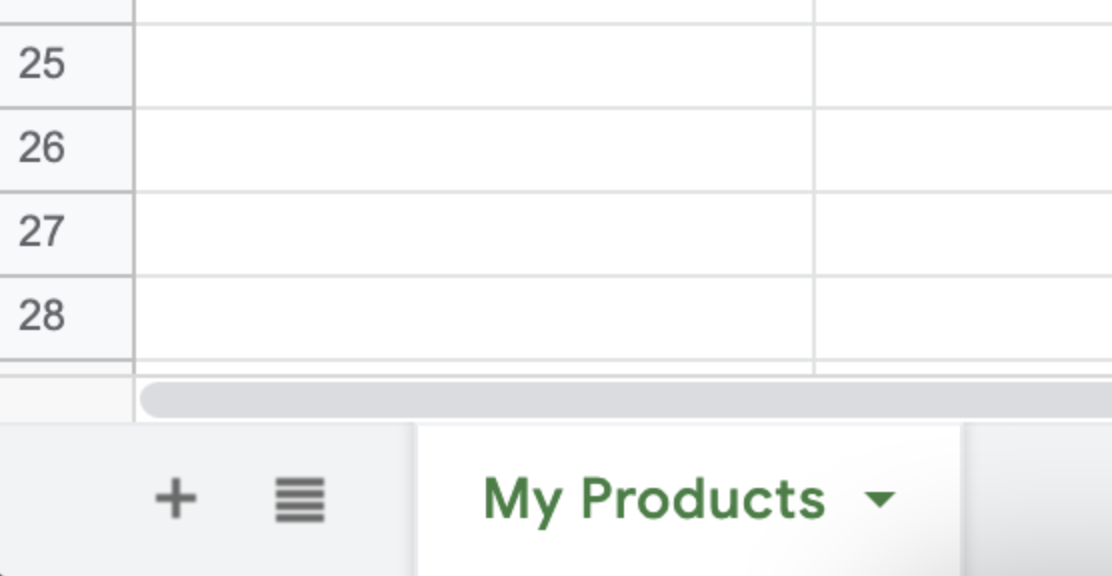
6️⃣ Copy the
Sheet Name 7️⃣ Paste it into the required field on the Wherehouse dashboard.
Please note it is case sensitive so copy & paste would work best
Steps on Wherehouse (continued) 👨💻
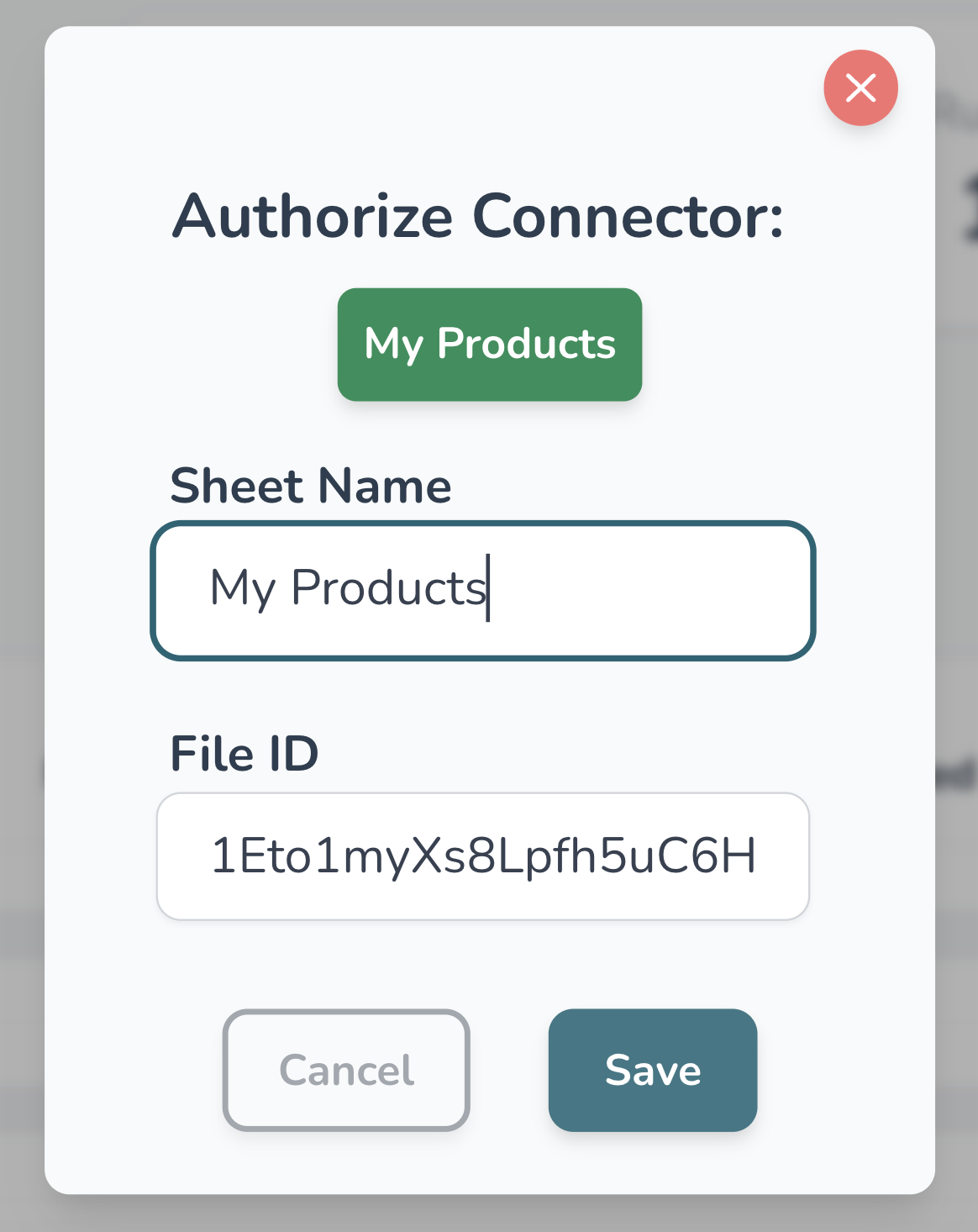
1️⃣ If you’ve pasted the required info into the modal on Wherehouse, hit save
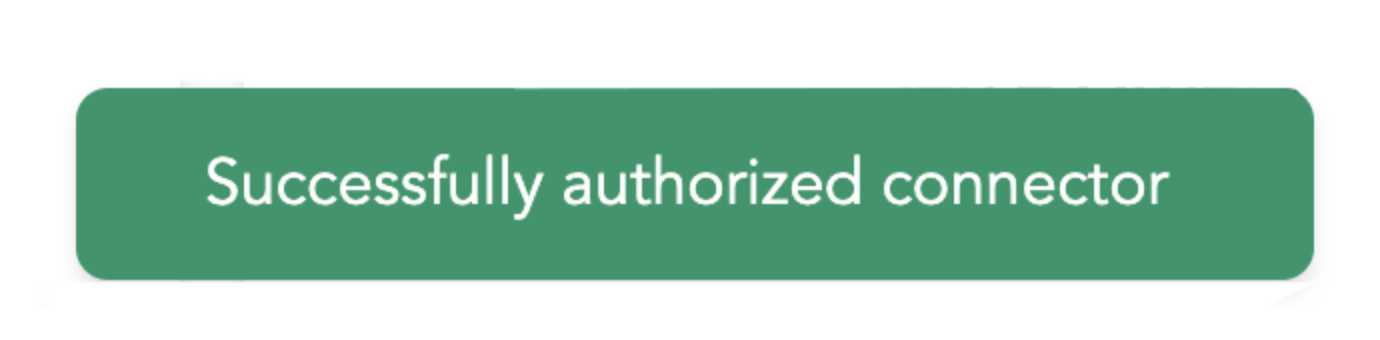
2️⃣ If all went well you should see “Successfully authorized connector”.