
You can export products or orders that match applied filters on the Wherehouse dashboard (up to 10,000 items at a time) to a CSV file. Here’s how:
Exporting Products:
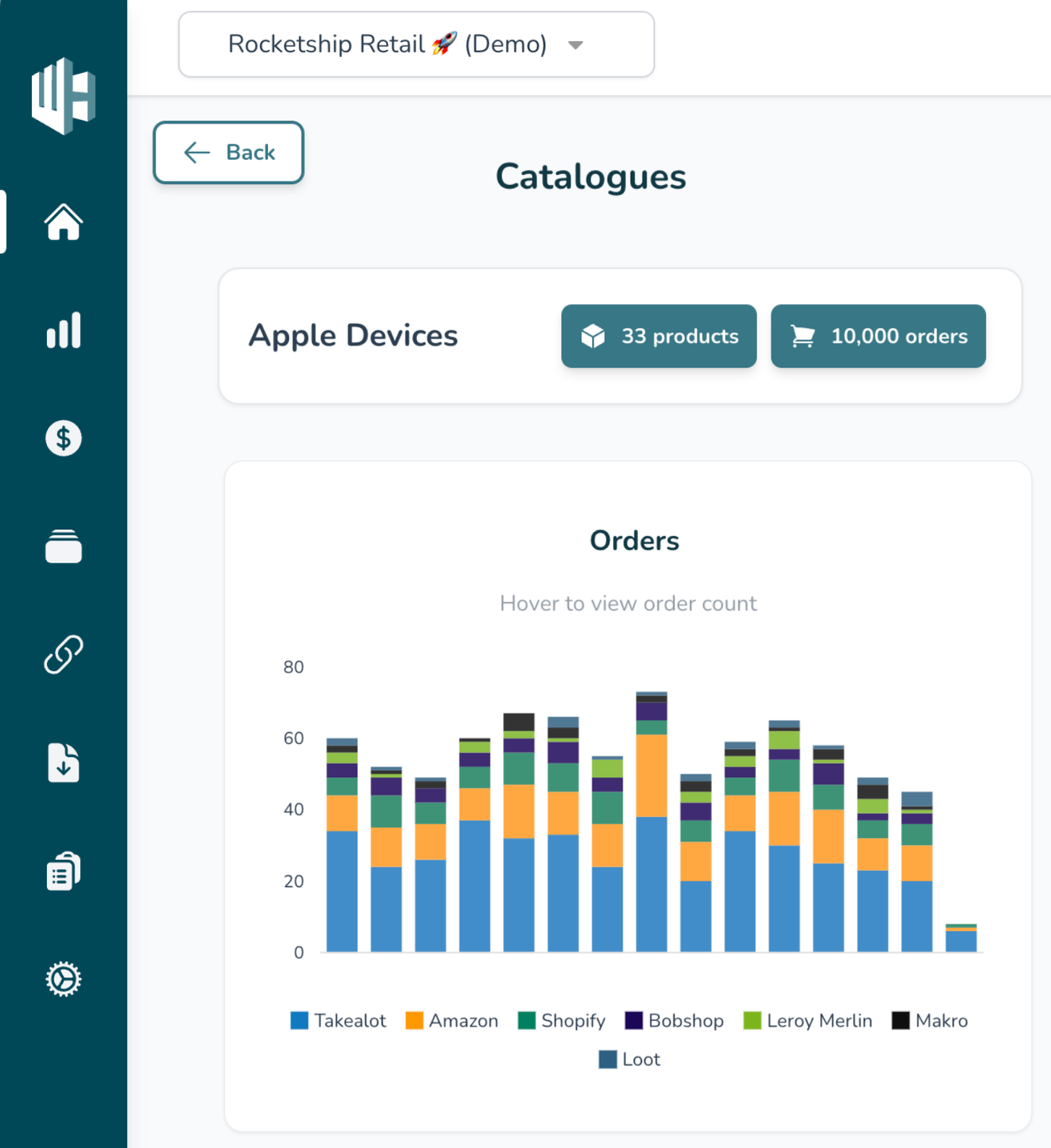
1️⃣ Sign in to your Wherehouse account.
2️⃣ Click on the Products button next to the relevant catalogue name (the button with the 📦 icon).
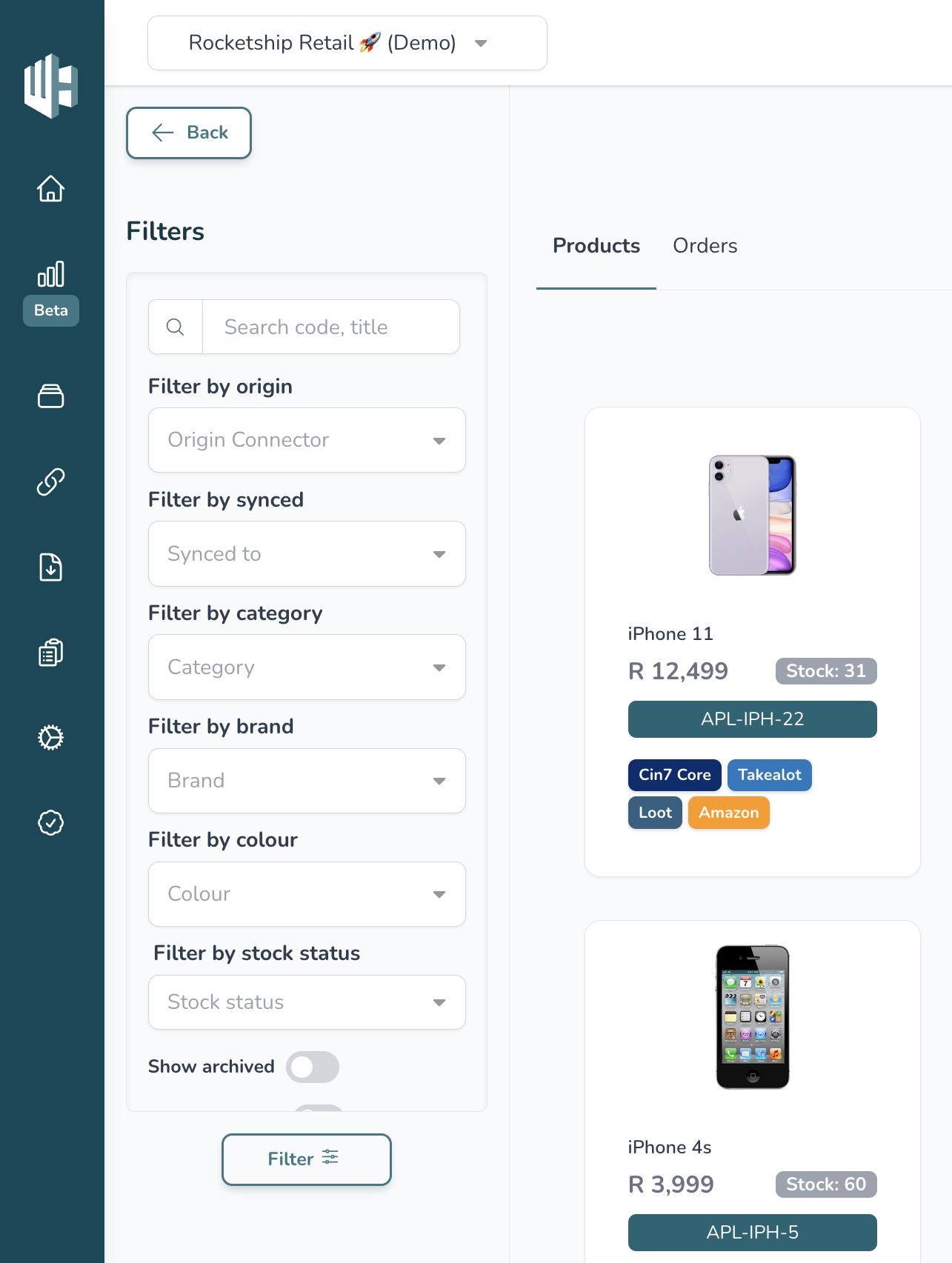
Use the Filters function on the left to refine your selection, e.g. show me all products in the ‘Electronics’ category.
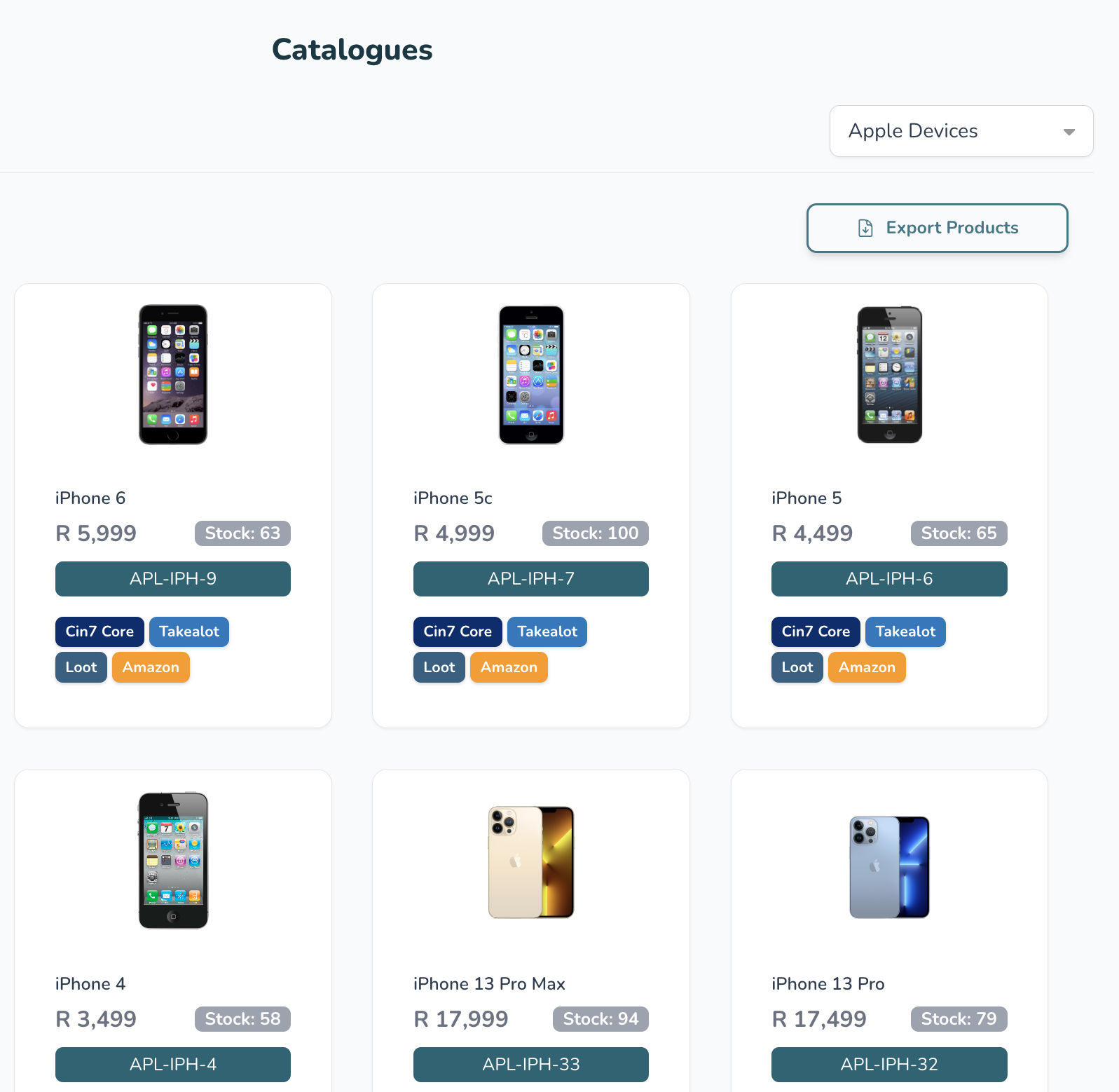
3️⃣ Click on Export Products (top right).
A drop-down will open with two export options to choose from: Coverage Report or All Product Data.
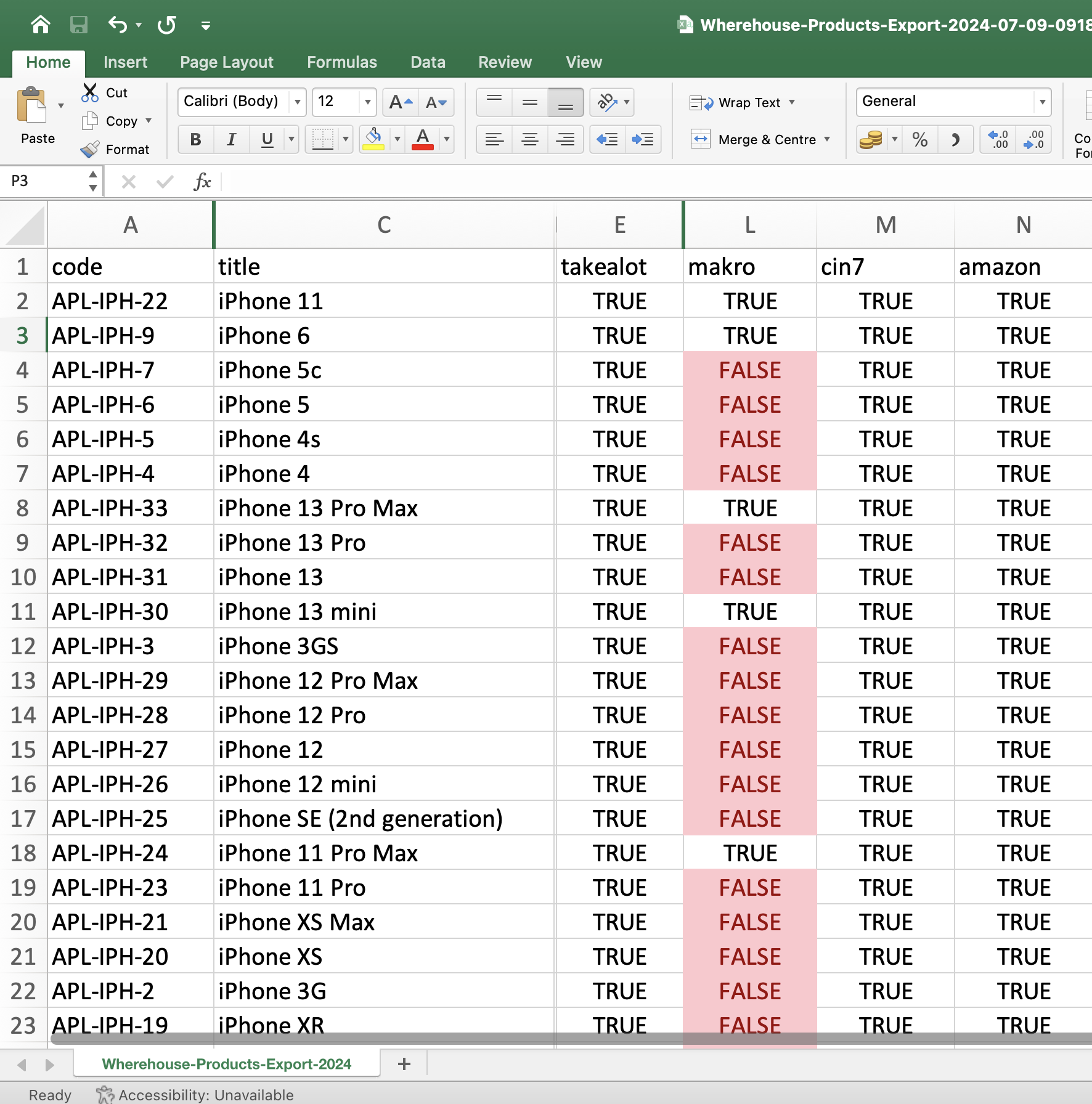
Coverage Report:
A coverage report includes essential product identifiers such as SKU, barcode, and title. It provides an overview of the product's presence across all integrated platforms.
It is useful for platform comparison, e.g. comparing all the SKUs that are on Takealot but not Makro so that you can add them there.
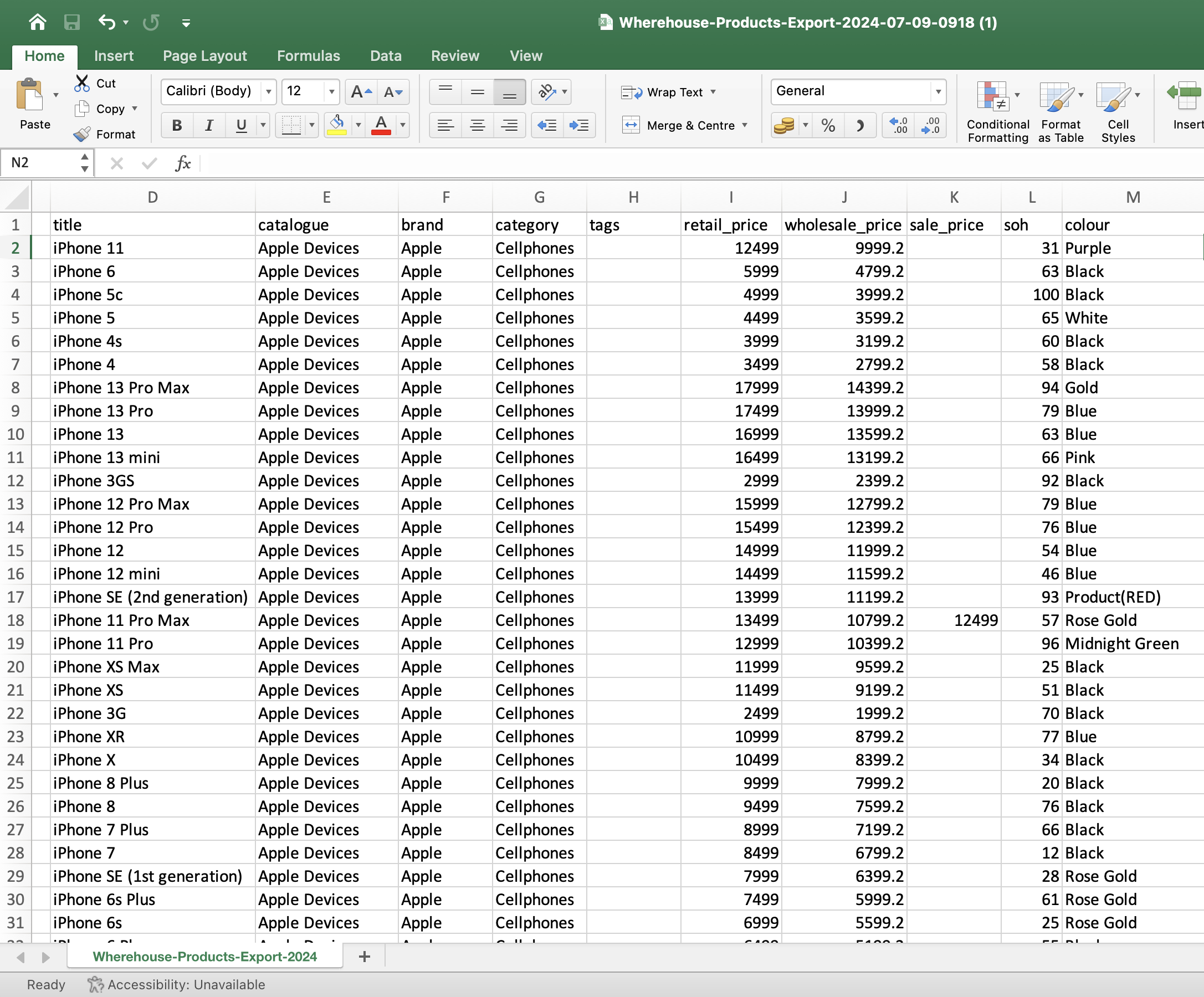
All Product Data:
Includes all attributes available in Wherehouse for each product, such as brand, stock on hand (SOH), pricing, and descriptions.
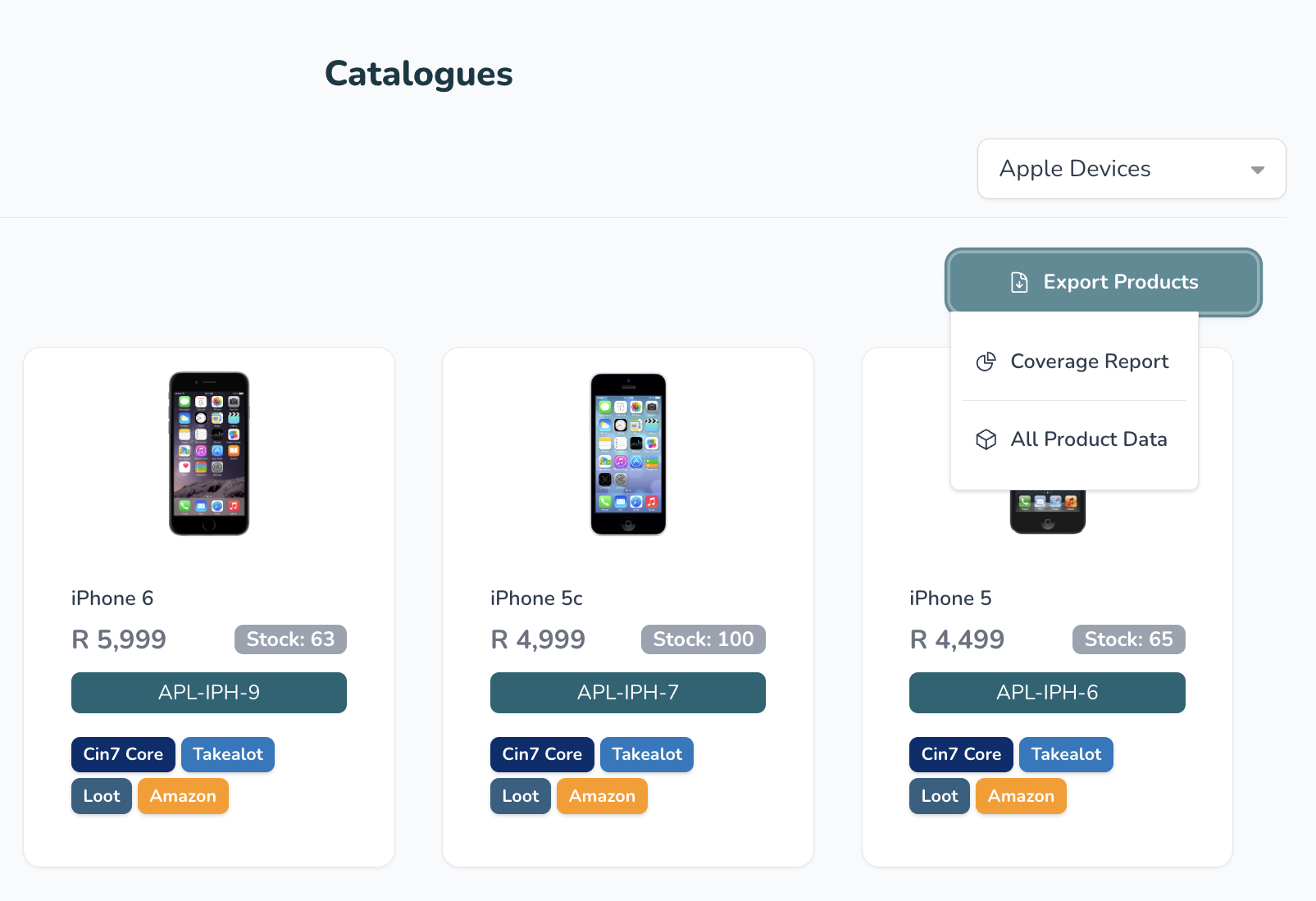
4️⃣ Choose between Coverage Report or All Product Data export options by clicking on the the applicable option.
A CSV file will automatically download to your device.
Exporting Orders:
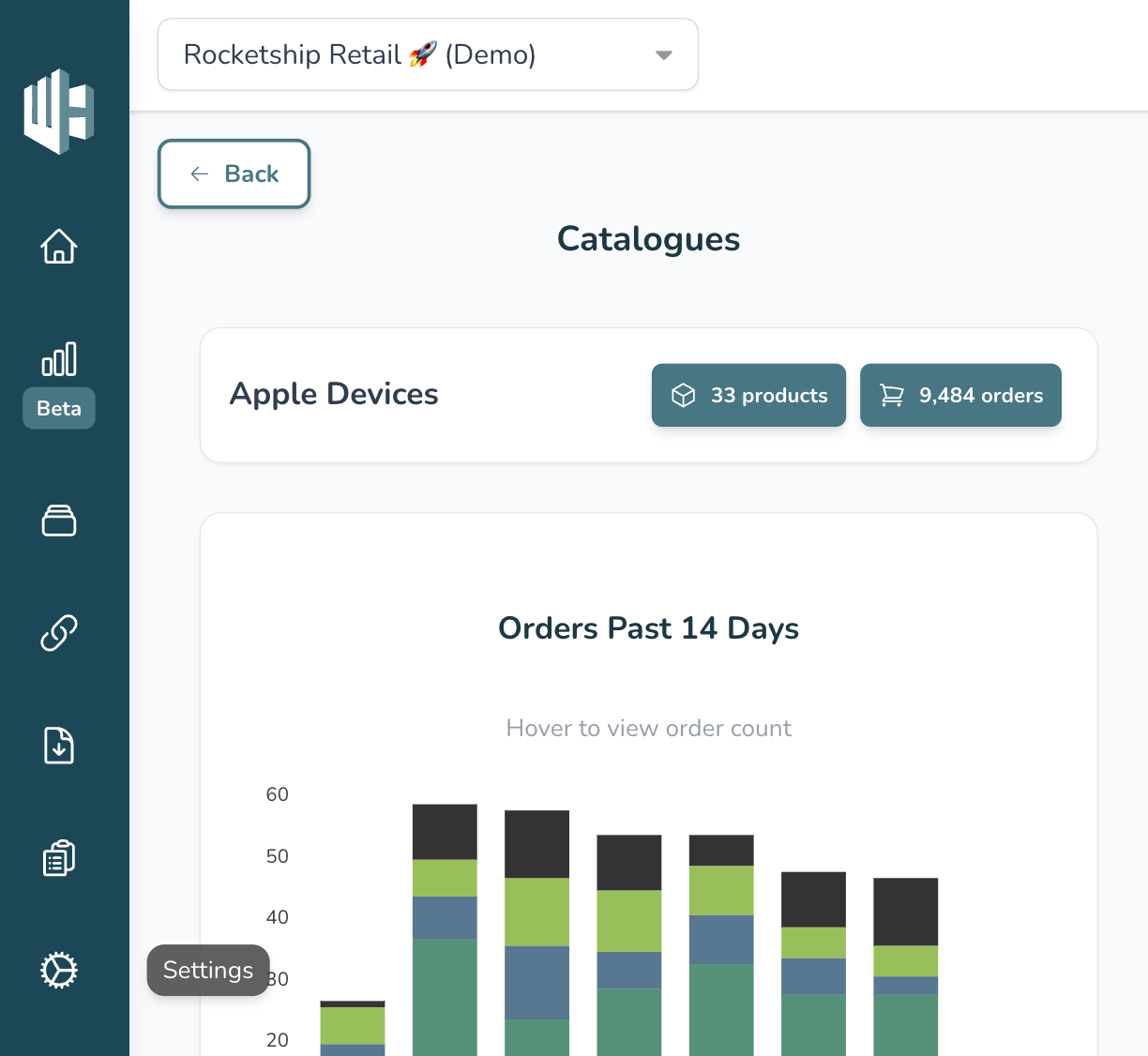
1️⃣ Sign in to your Wherehouse account.
2️⃣ Click on the Orders button of the relevant catalogue (the button with the 🛒 icon).
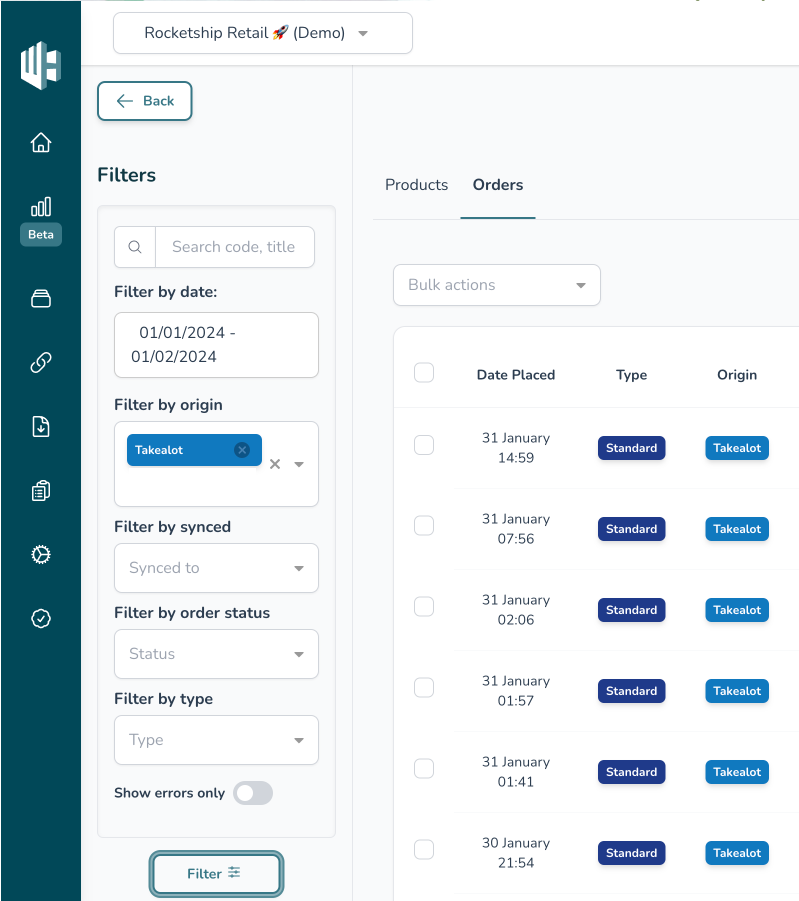
Use the Filters function on the left to refine your selection, e.g. show me Takealot orders for January 2024.
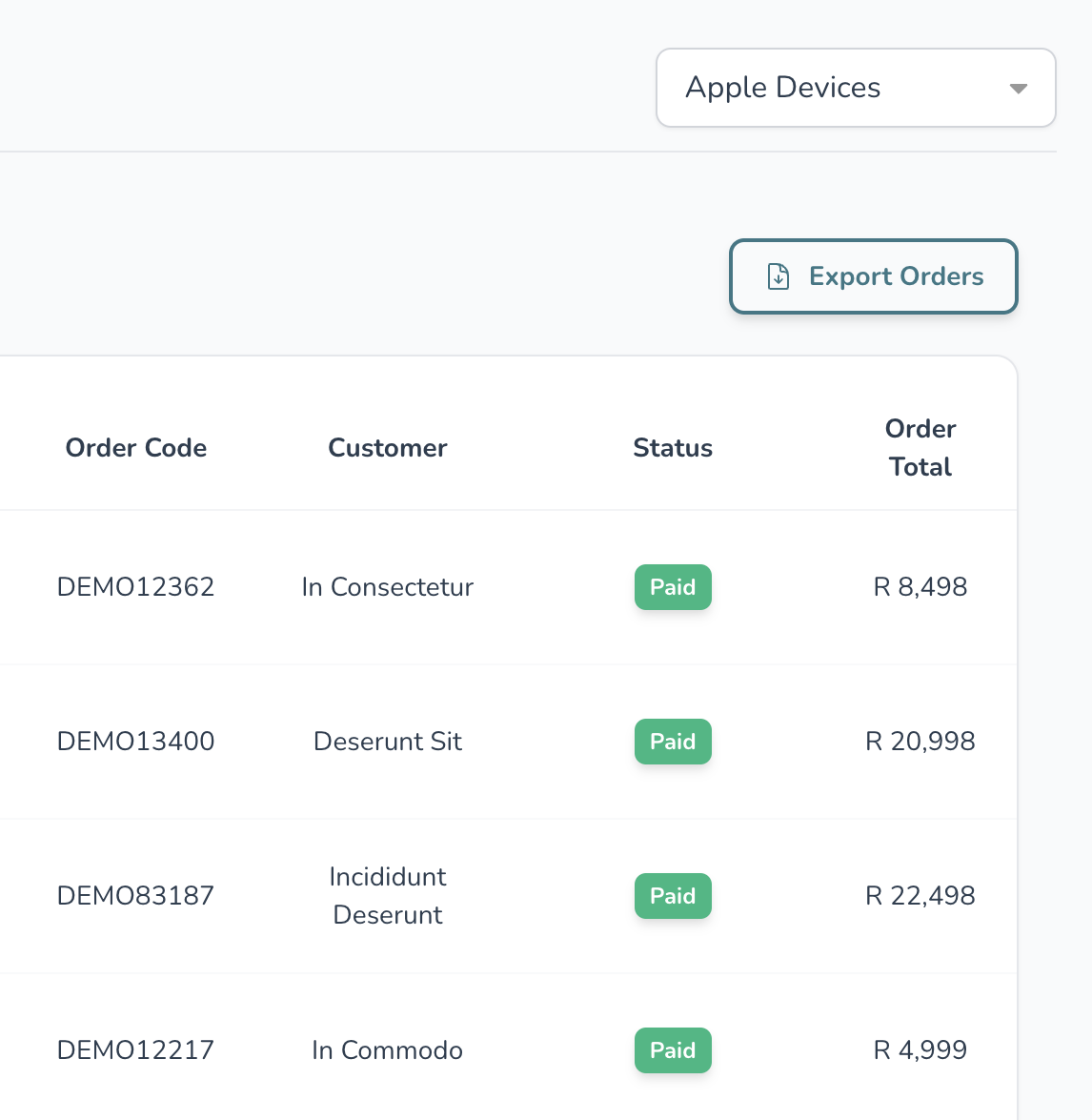
3️⃣ Click on Export Products (top right).
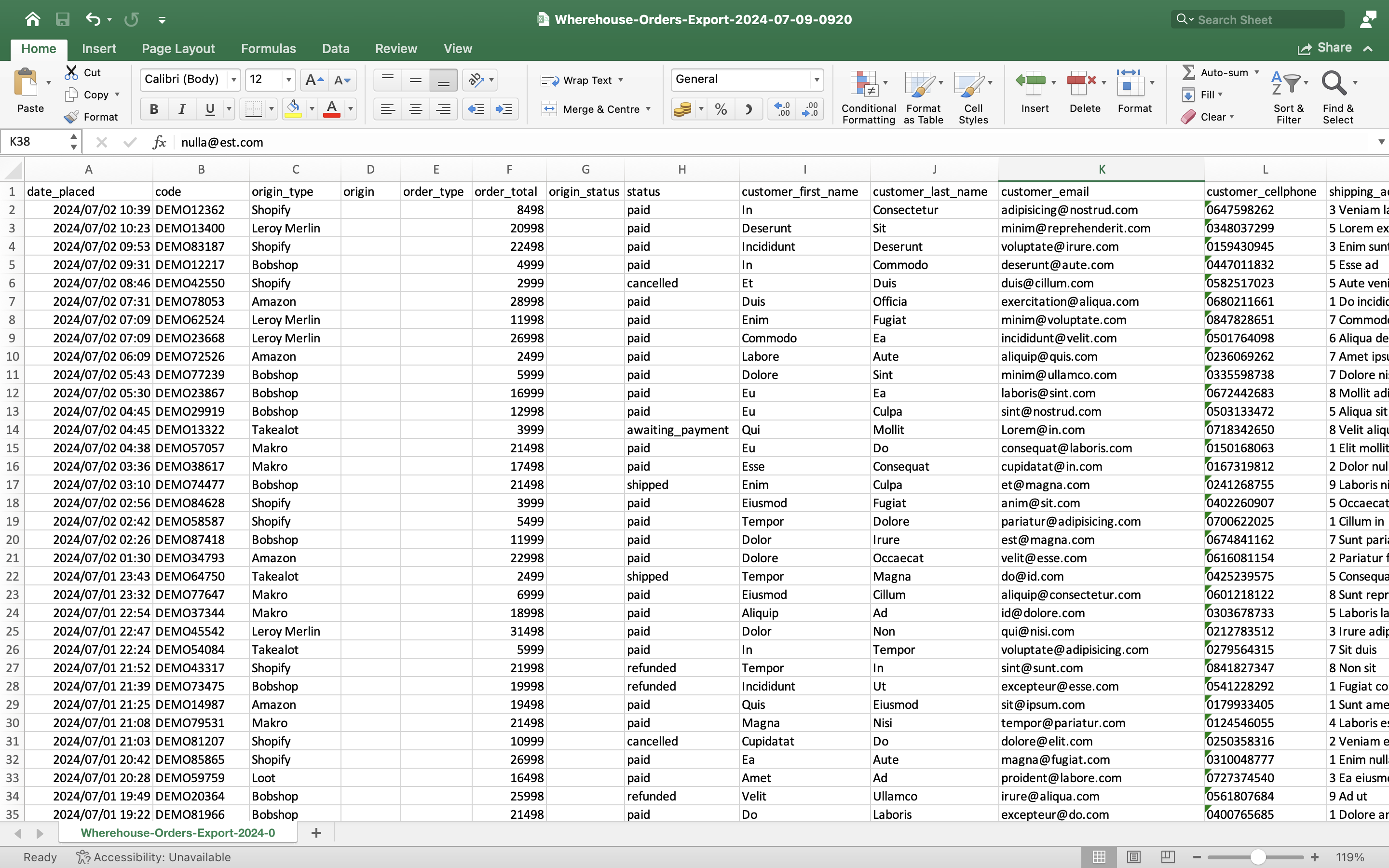
A CSV file will automatically download to your device.