
Understanding Connectors 🔗
Connectors allow Wherehouse to securely communicate with your eCommerce platforms. On your Wherehouse dashboard, you'll find import and export connectors.
Why Run a Connector for Select Items? 👨💻
This feature enables you to manually initiate or re-run a connector exclusively for specific product(s) or order(s), facilitating updates solely on those chosen items.
There are two methods to achieve this:
- You can select specific order(s) and manually trigger or re-run a connector on those items rather than running it on the entire catalogue.
- You can manually enter specific product or order codes for a targeted sync when running a connector. This functionality accommodates customers who prefer filtering products or orders externally, such as using Excel or another system, and then performing updates solely on those chosen items.
Option 1: Selecting Specific Order(s) within a Catalogue to Run a Connector On
1️⃣ Sign in to your Wherehouse account
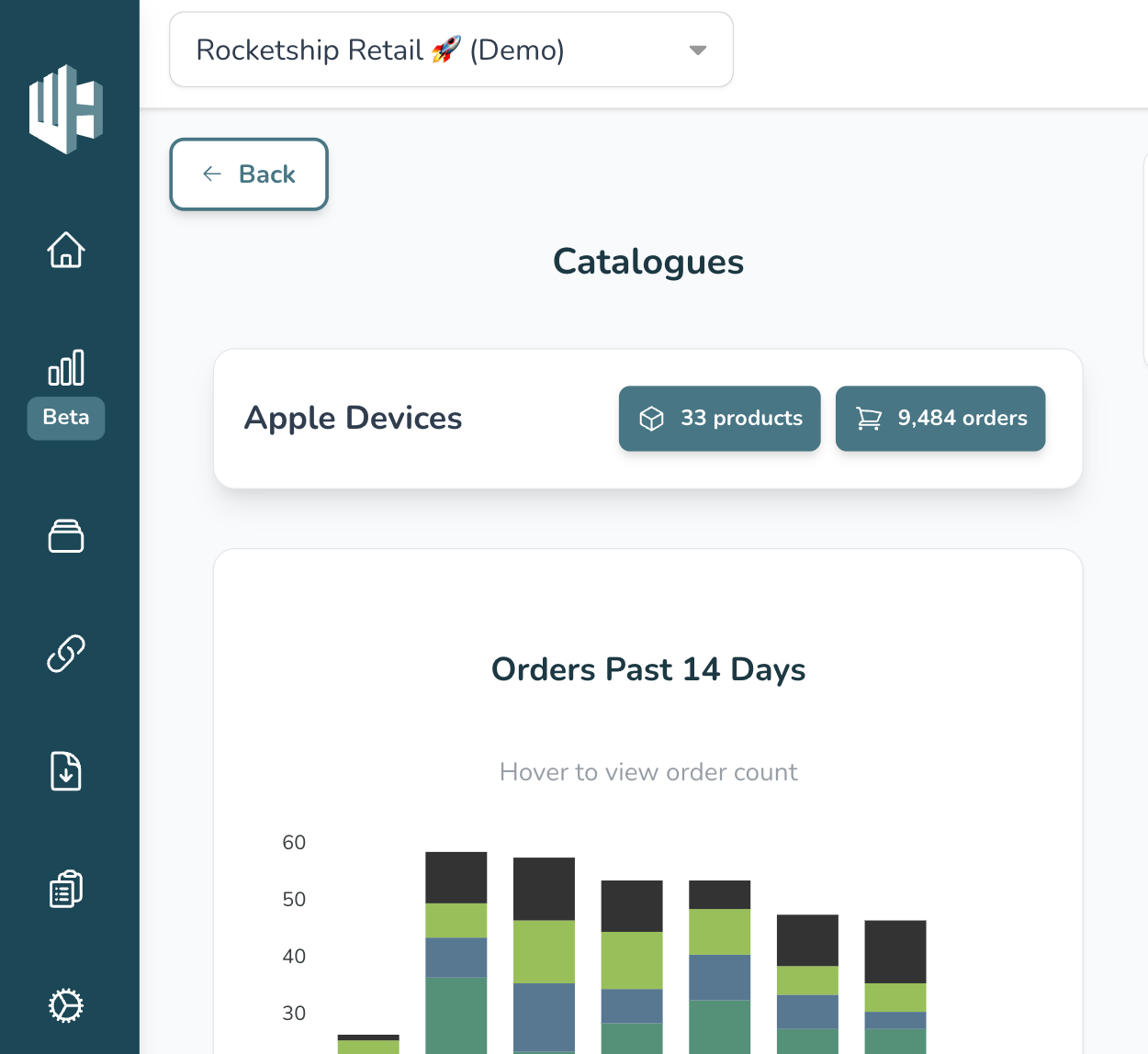
2️⃣ Click on the orders button for the catalogue that contains the order(s) you want to run the connector on
The catalogue determines the collection of products the connector will run on.
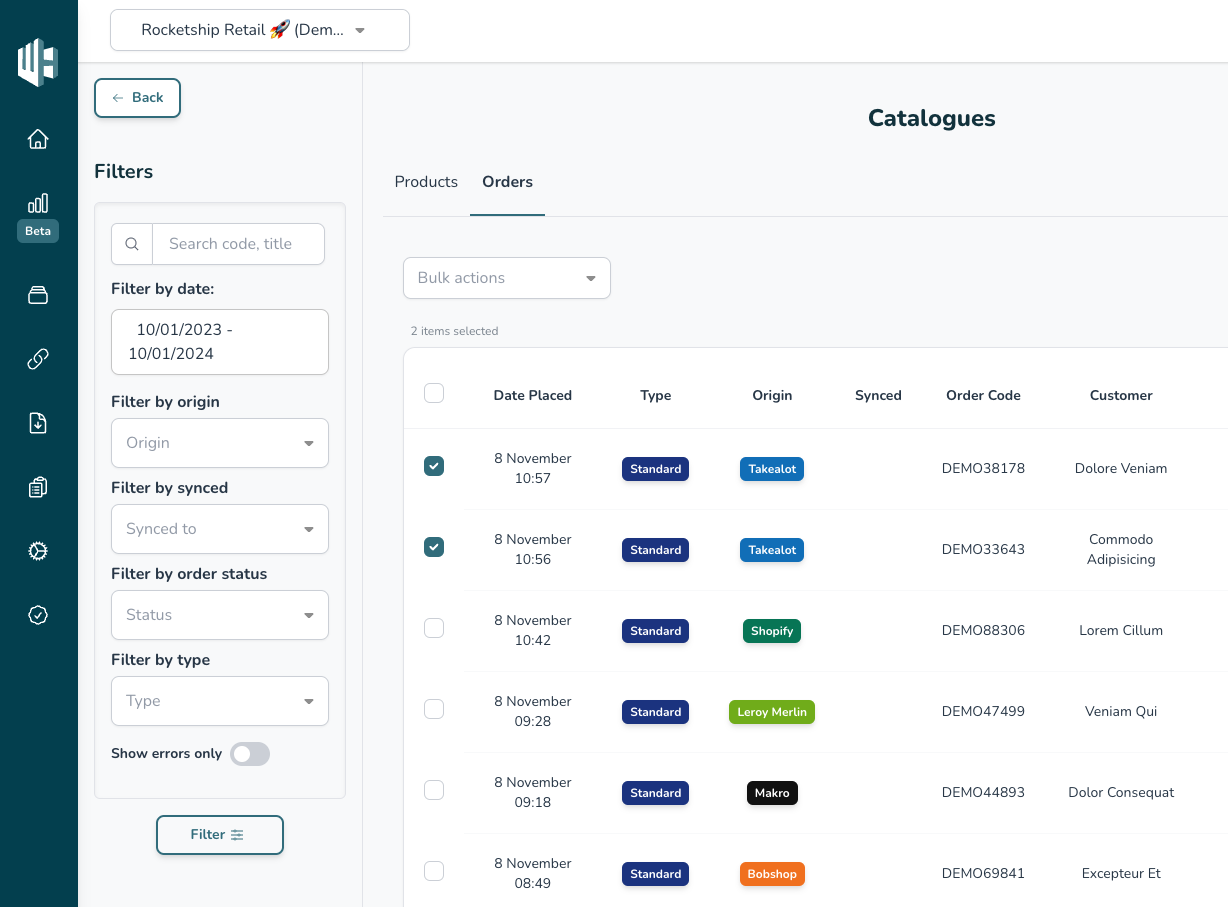
3️⃣ Select the order(s) you would like to run the connectors on
You can use the filters to find specific orders
4️⃣ Click on the Bulk actions drop down and select Run sync
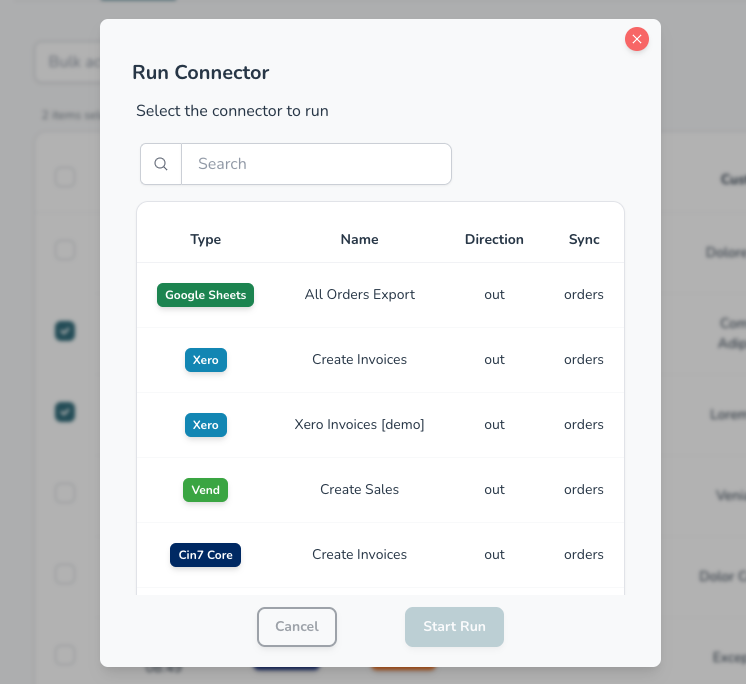
5️⃣ Click on the connector you want to manually run
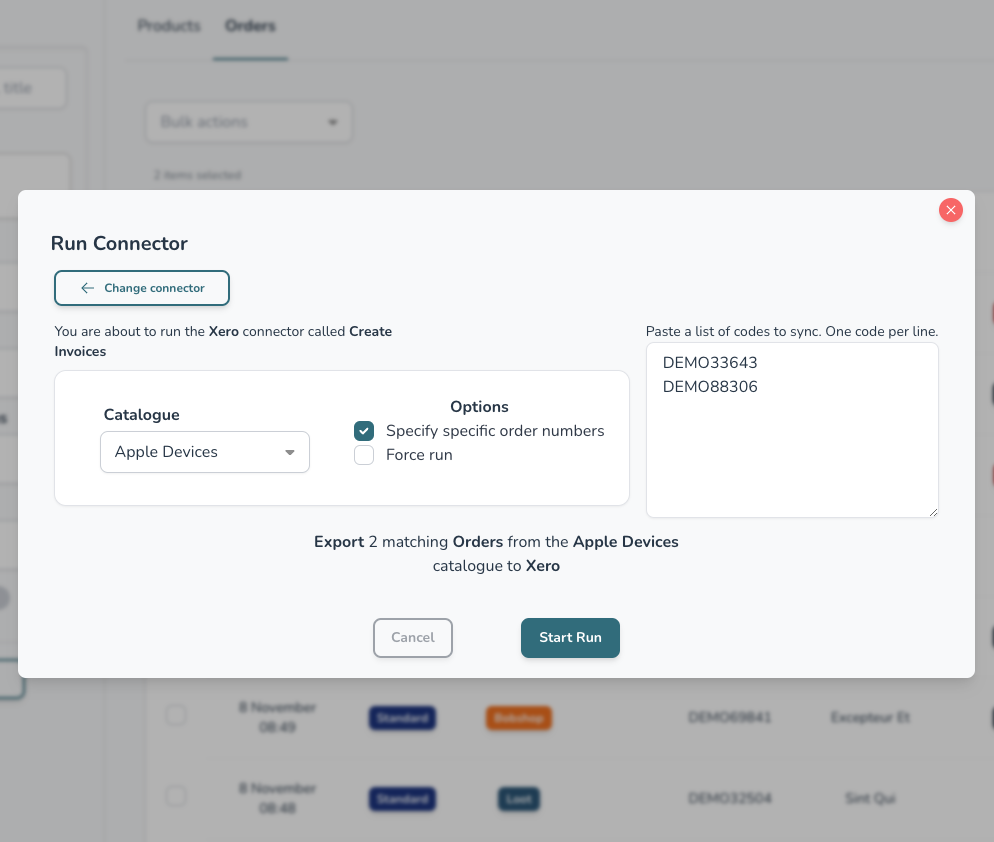
The Order Codes will pre-populate in the box with the items you selected in the interface
The force run function is useful when you manually updated something on the destination system and Wherehouse needs to re-sync it
Only select the Force run box if you want to re-run items that have already been synced.
6️⃣ Hit the Start Run button
Option 2: Manually Entering Product or Order Code(s) to Run a Targeted Sync
1️⃣ Sign in to your Wherehouse account
2️⃣ Navigate to the Platforms page
The link icon on the left will take you to the Platforms page
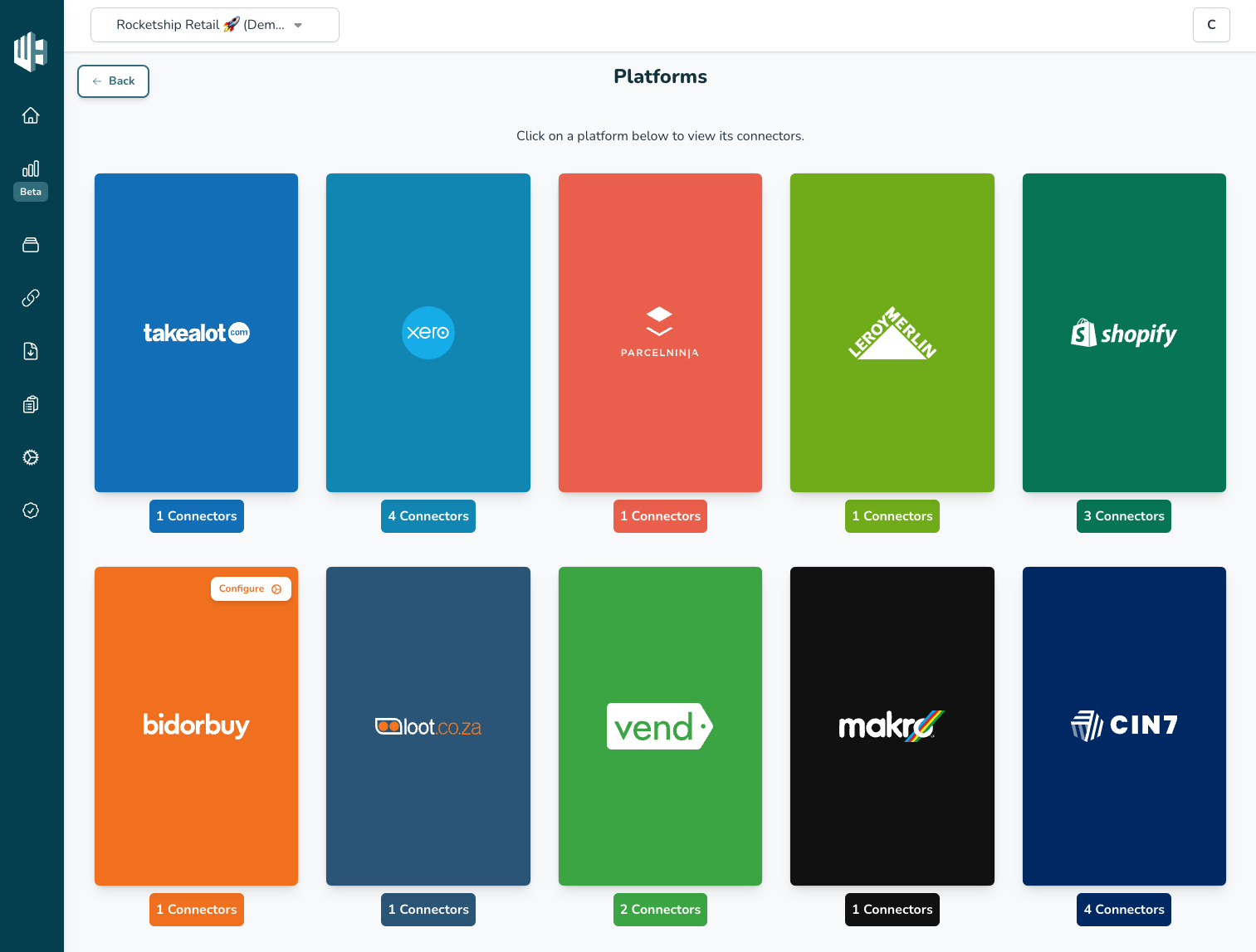
3️⃣ Select the Platform that contains the Connector you would like to run
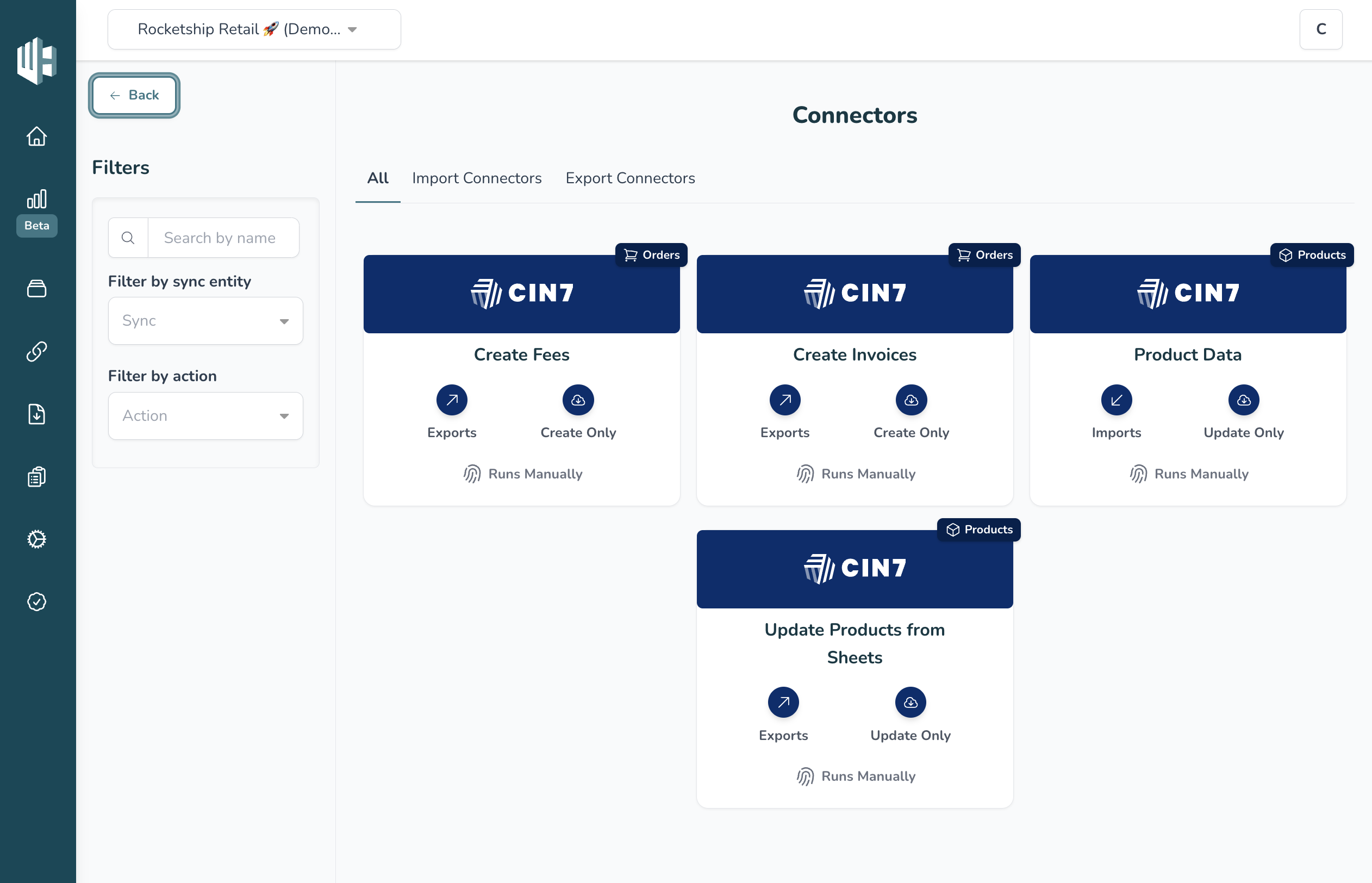
4️⃣ Select the Connector you want to run
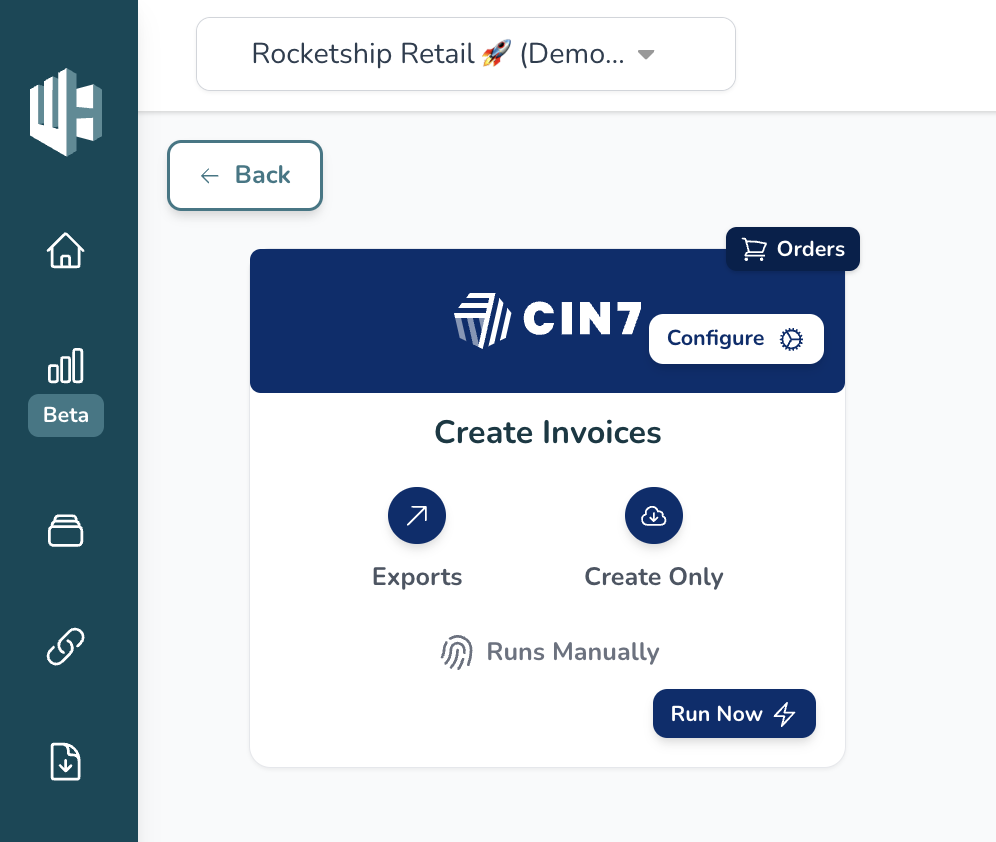
5️⃣ Click the Run Now button
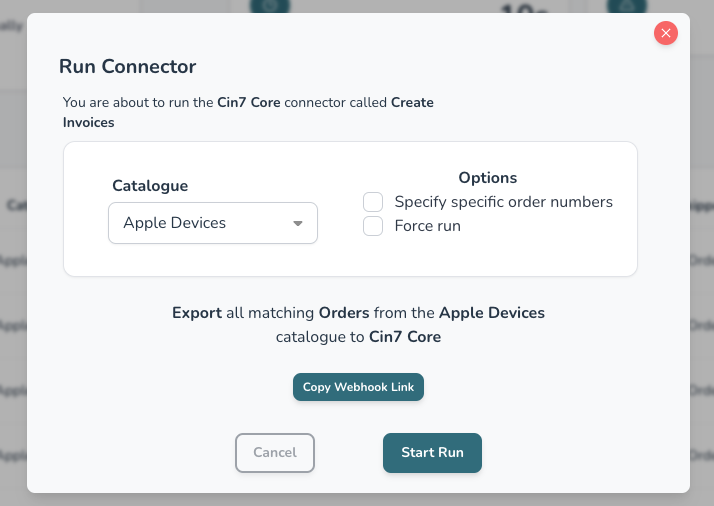
For Orders:
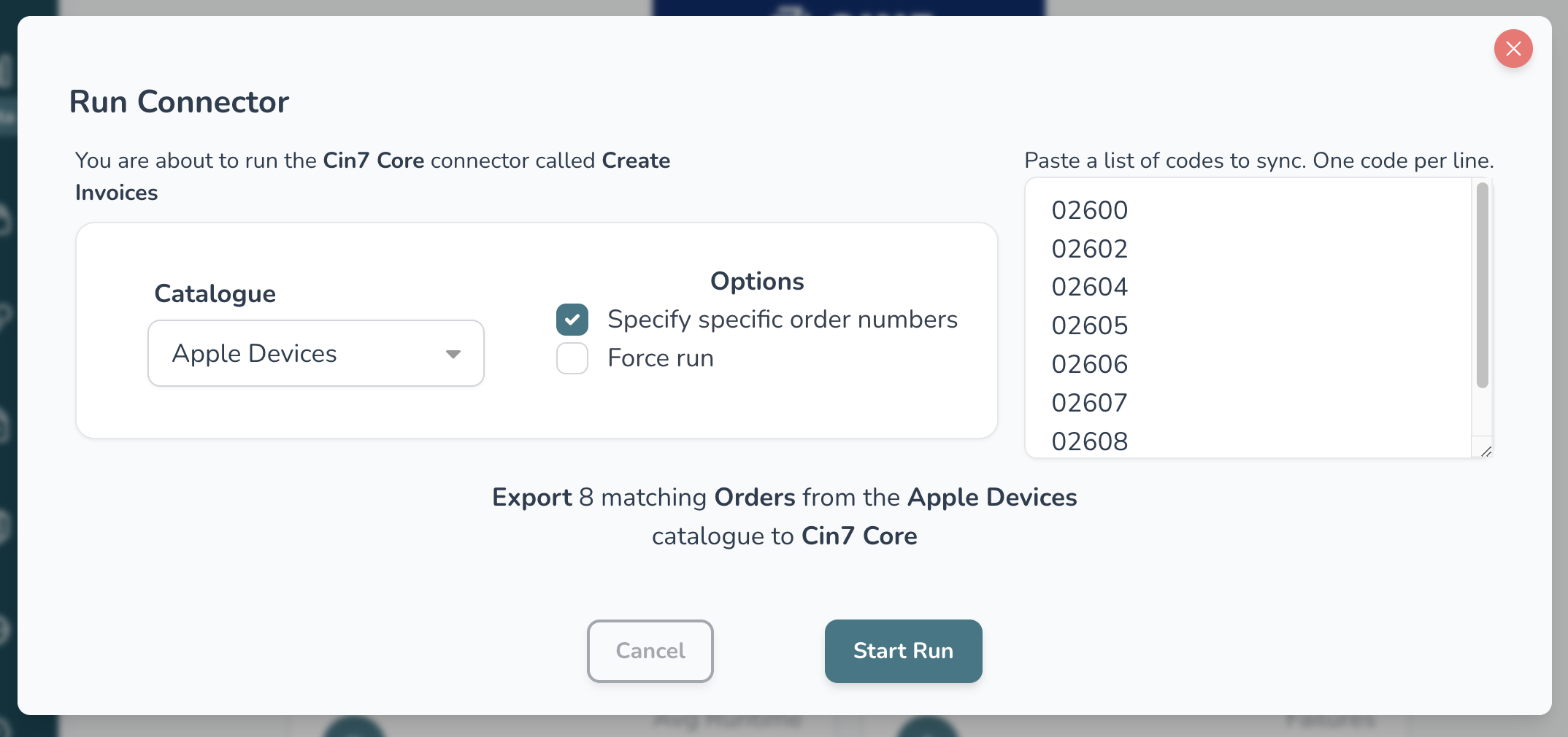
6️⃣ Select the “Specify specific order numbers” box
For Products:
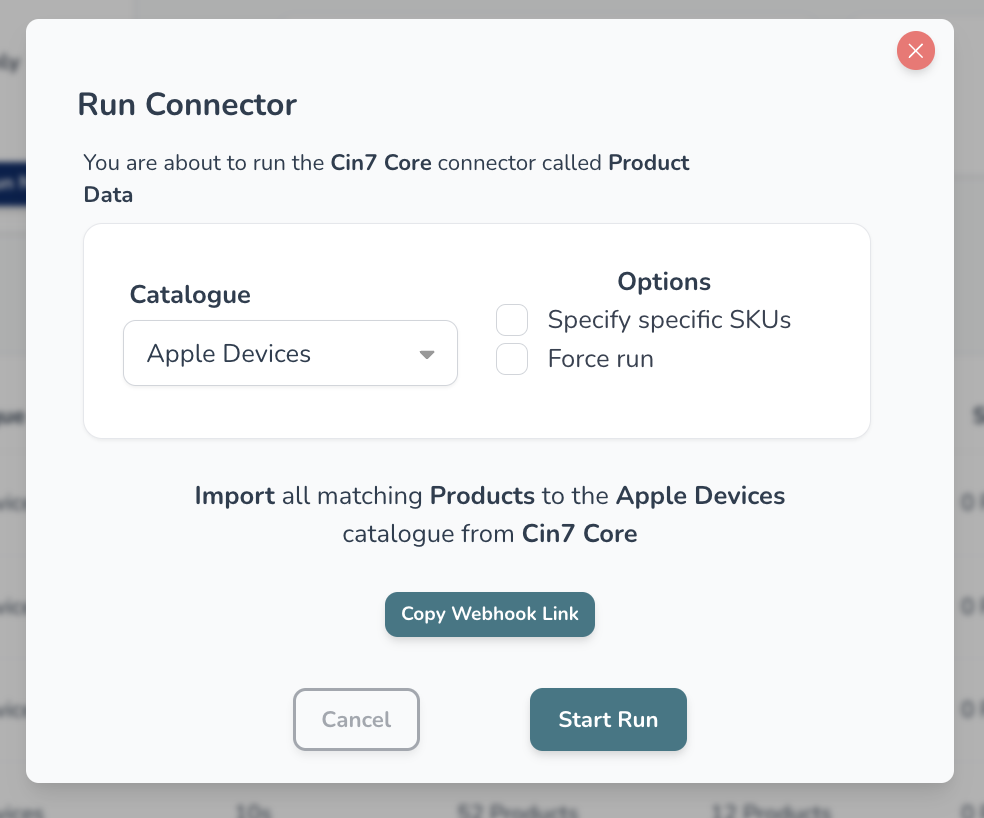
6️⃣ Select the “Specify specific SKUs” box
For Orders:
7️⃣ Type the order number(s) for the order(s) you would like to run the connector on in the box
For Products:
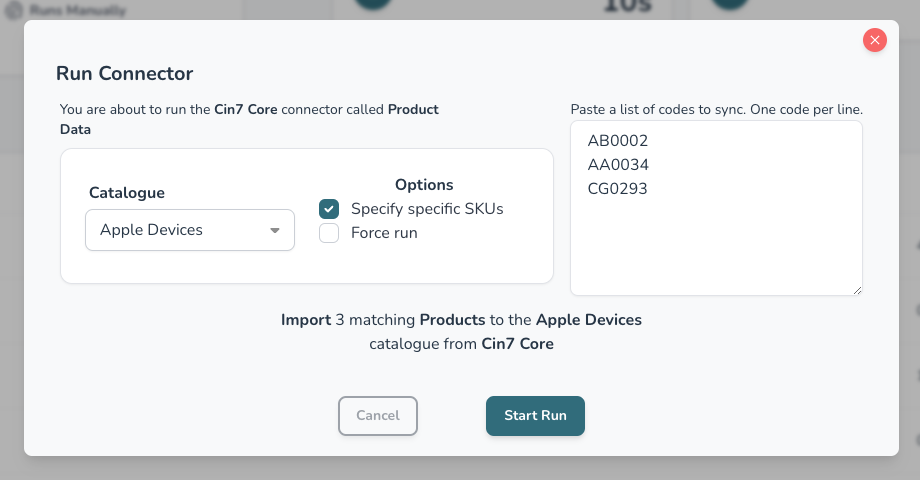
7️⃣ Type the product SKU(s) for the product(s) you would like to run the connector on in the box
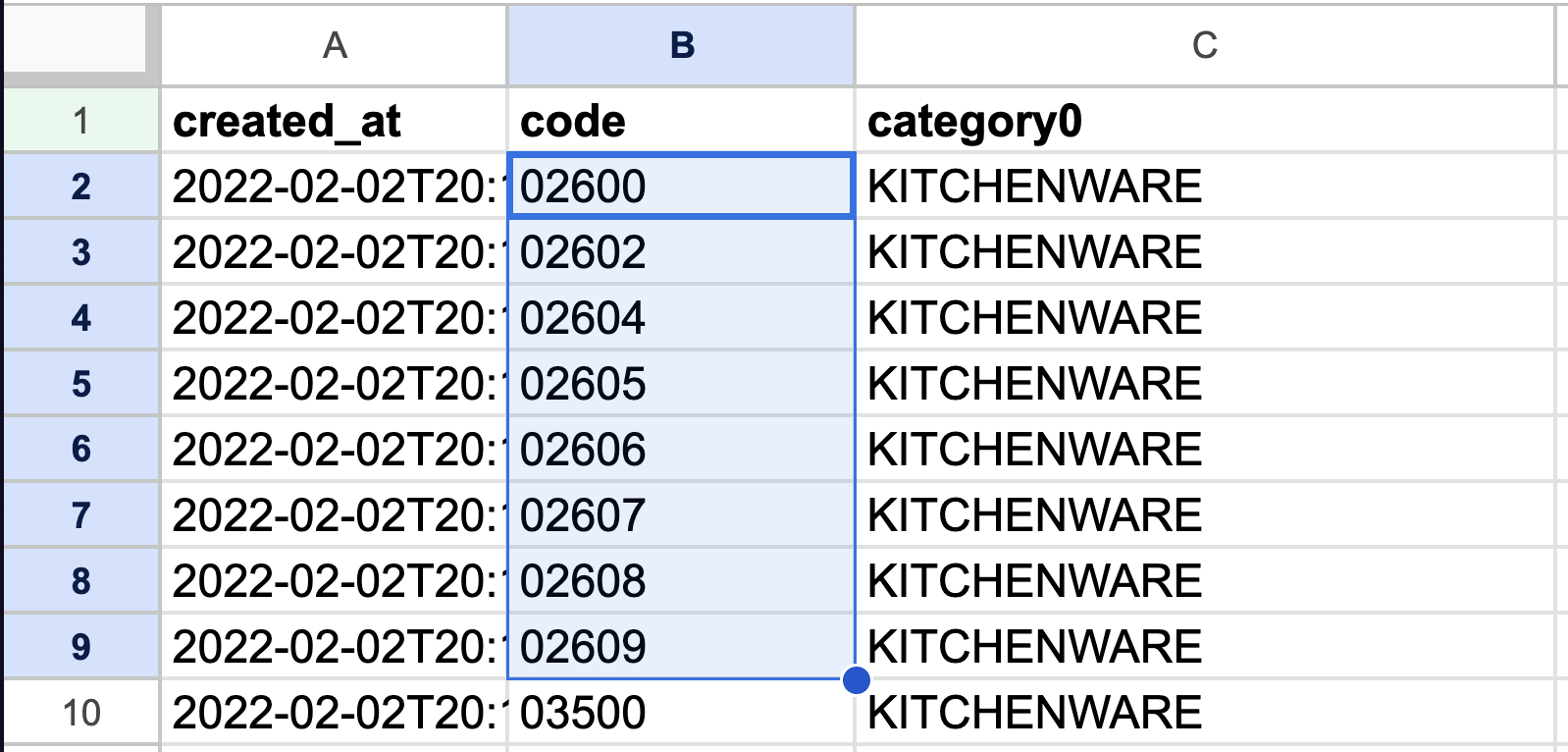
You can also copy the product or order code(s) from your external system, such as Excel, and then paste the list of codes into the box
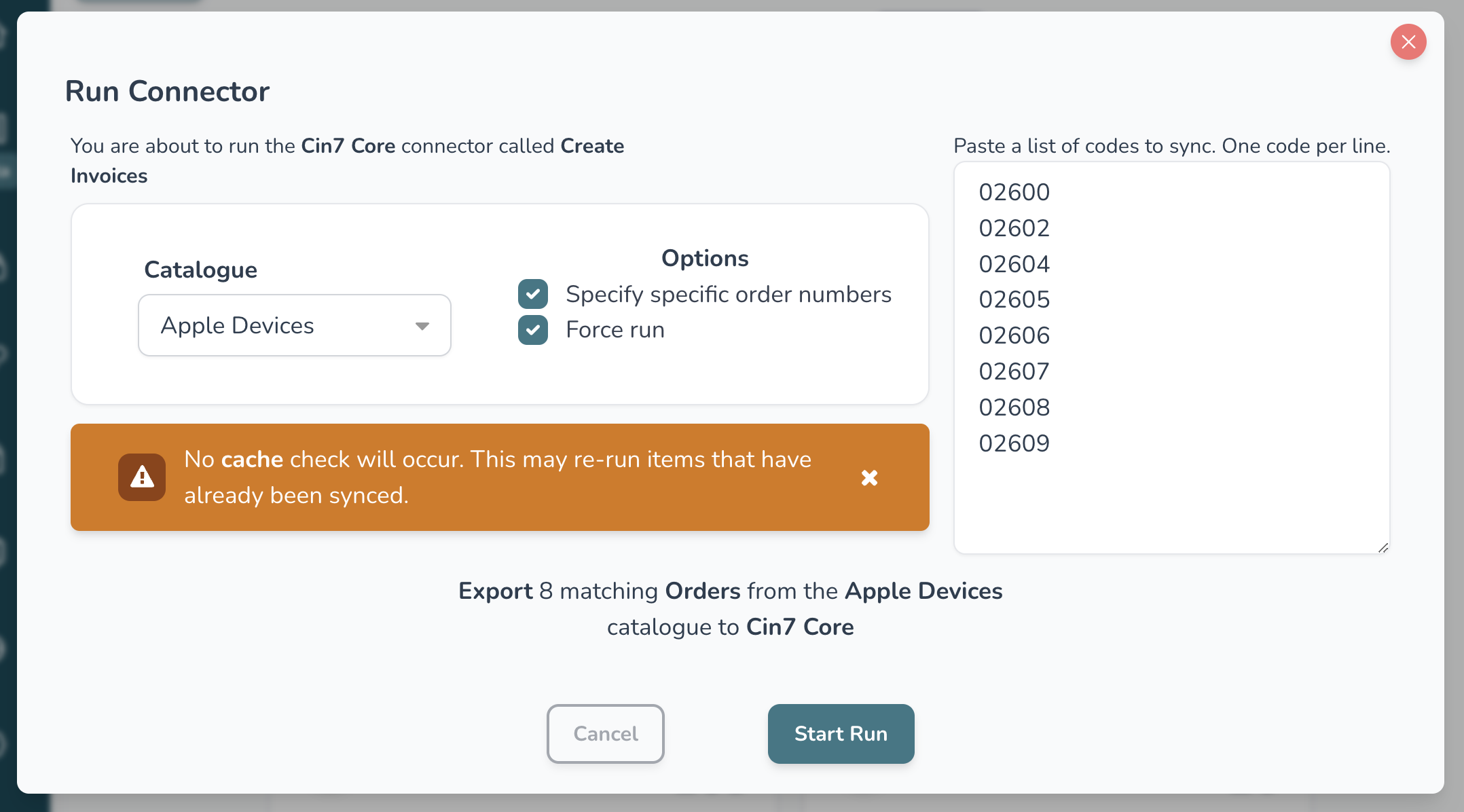
The force run function is useful when you manually updated something on the destination system and Wherehouse needs to re-sync it
Only select the Force run box if you want to re-run items that have already been synced.
8️⃣ Hit the Start Run button
The steps above not working? We’ve got your back, contact us at:
hello@wherehouse.co.za