
Steps on Wherehouse:
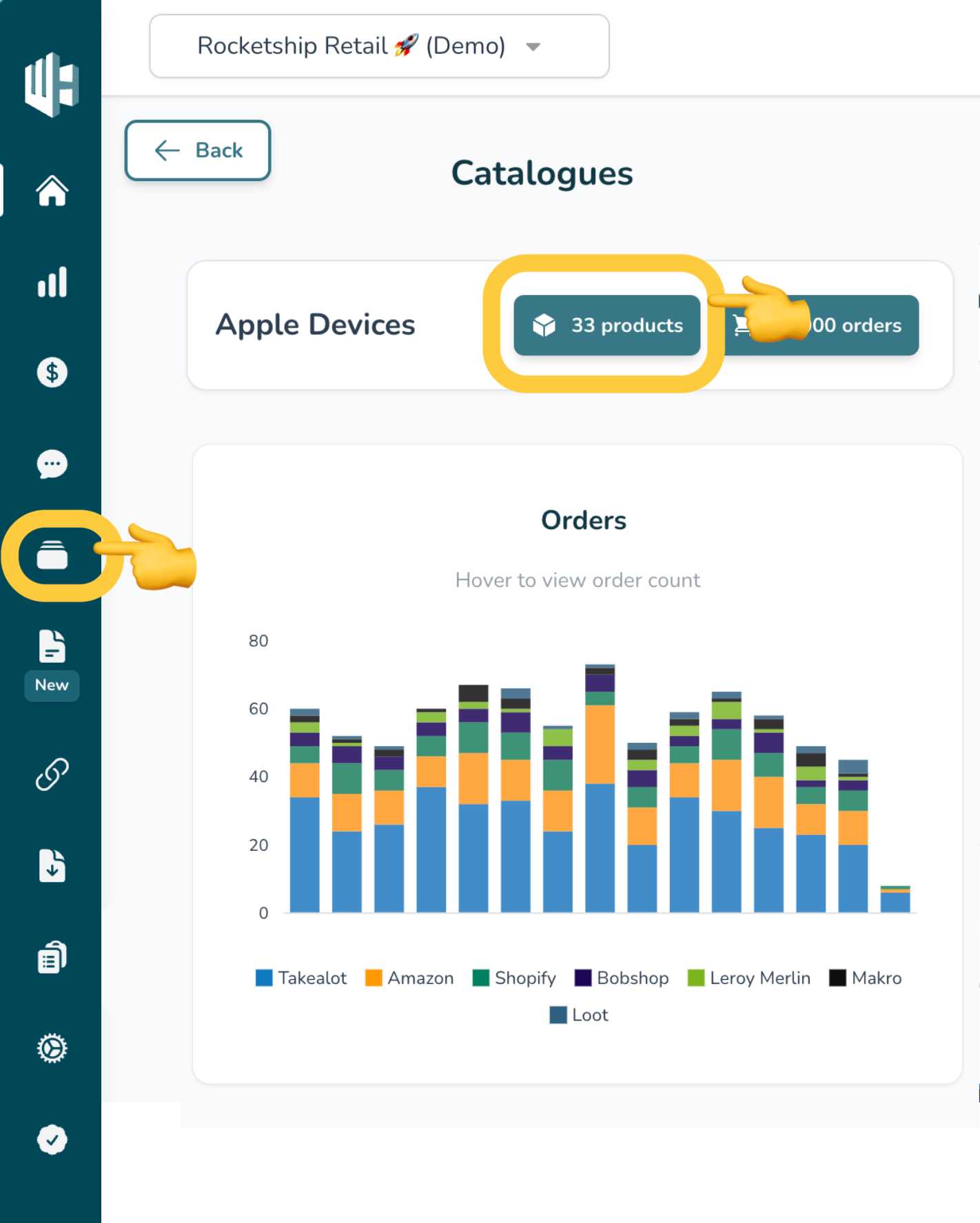
1️⃣ Sign in to your Wherehouse account.
2️⃣ Click on the Products button of the relevant catalogue (the button with the 📦 icon)
OR
Click on Catalogues in the left menu bar.
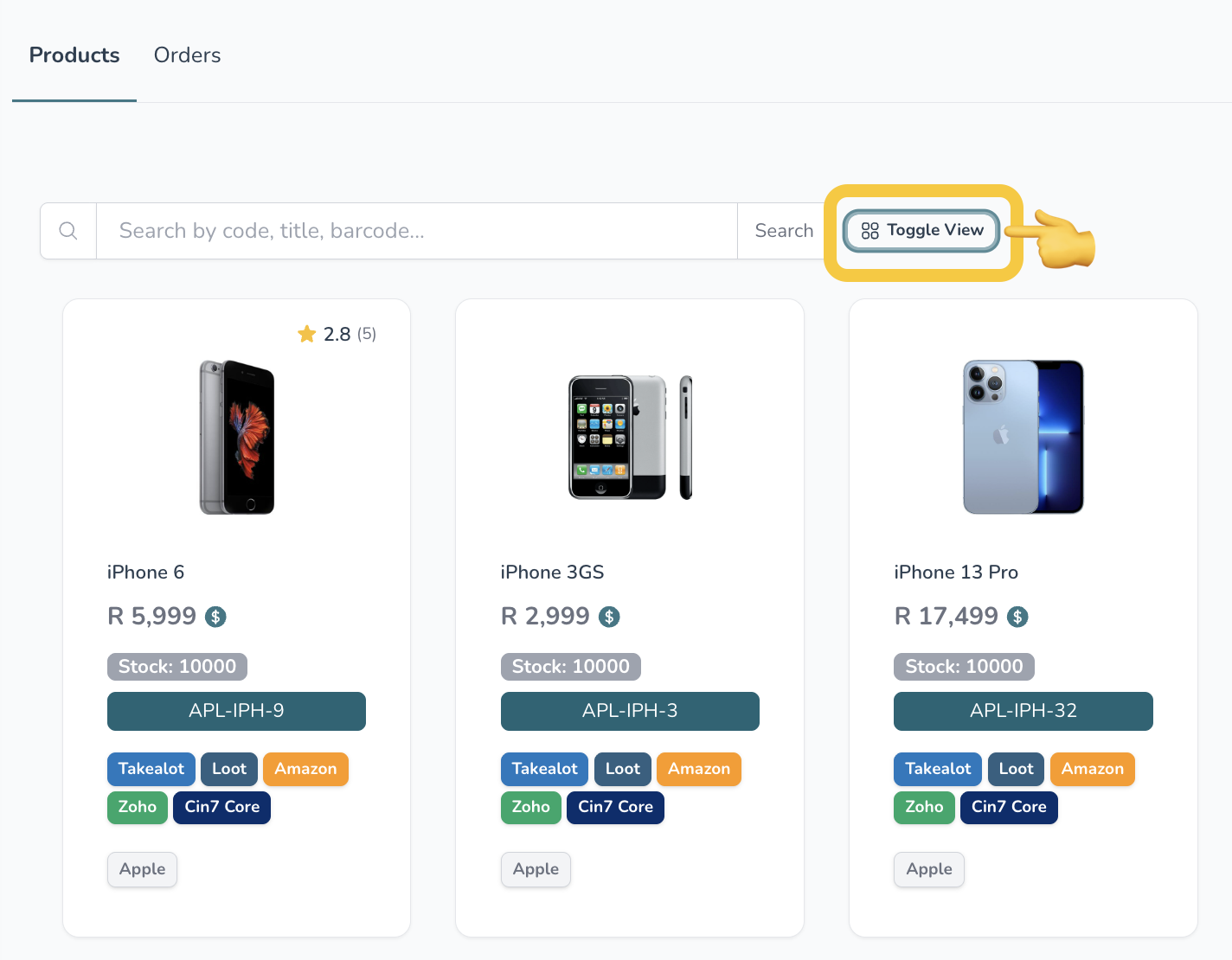
The delete function is only available in Table View.
3️⃣ If applicable, click on the Toggle View button to switch to Table View.
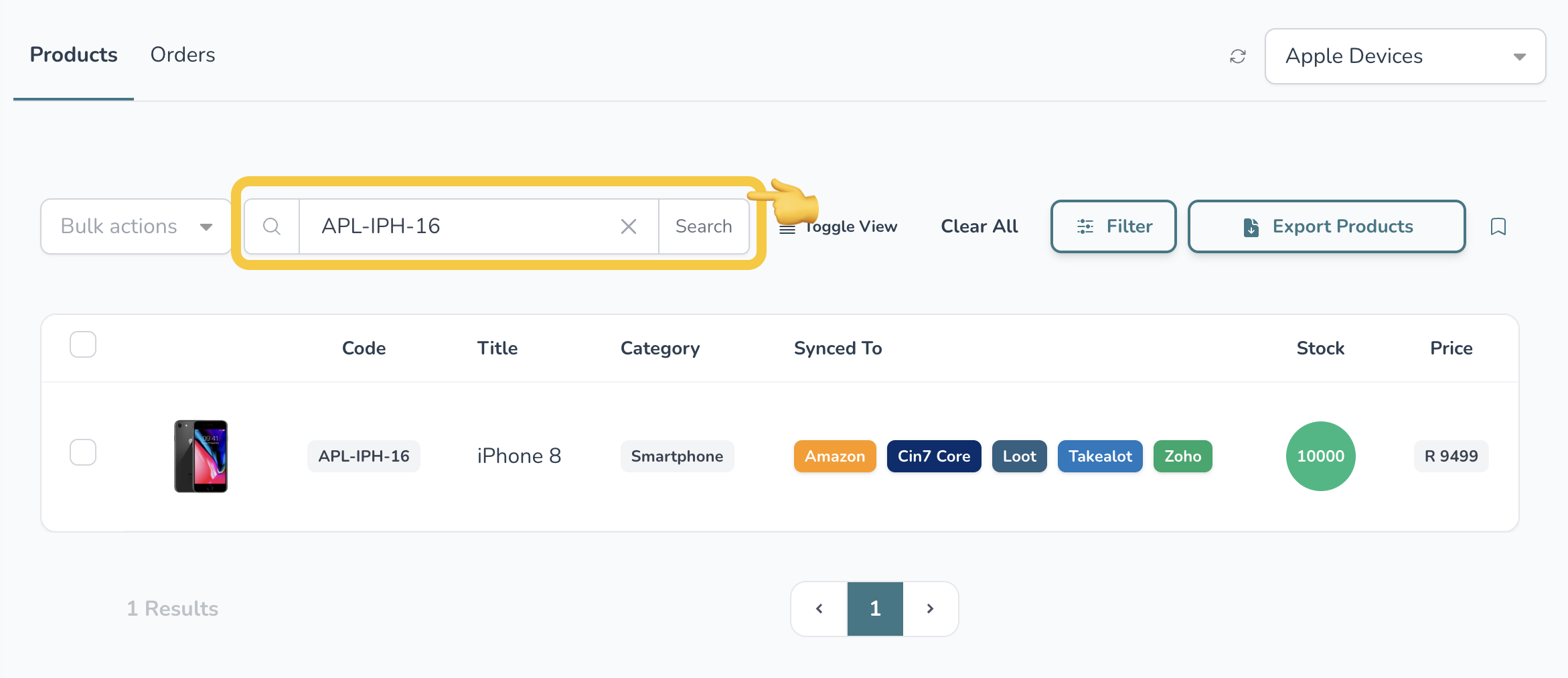
4️⃣ Use the search bar to find the specific SKU you would like to remove.
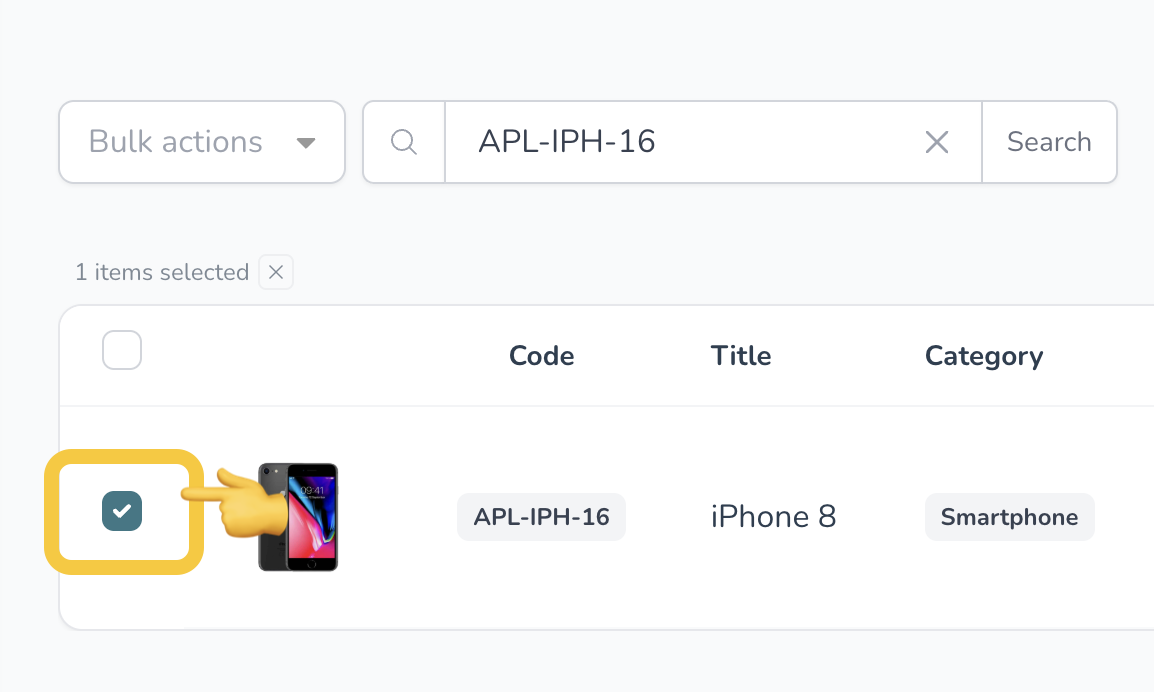
5️⃣ Select the relevant SKU by ticking the checkbox on the left-hand side of the SKU row.
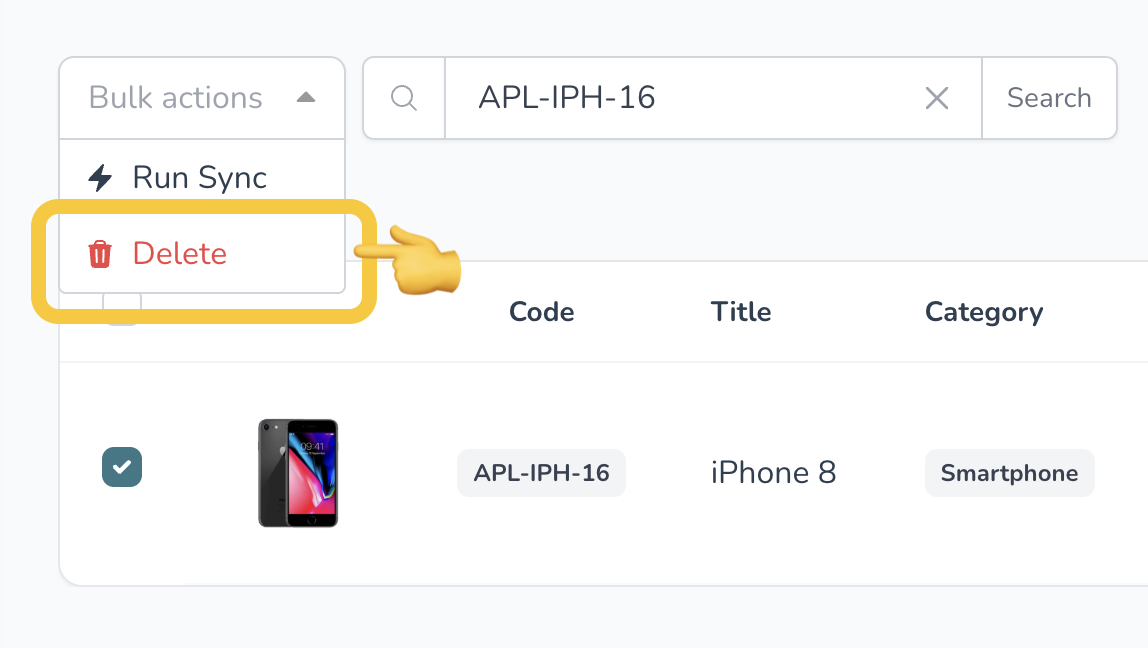
6️⃣ Click on the Bulk Actions dropdown menu and select Delete.
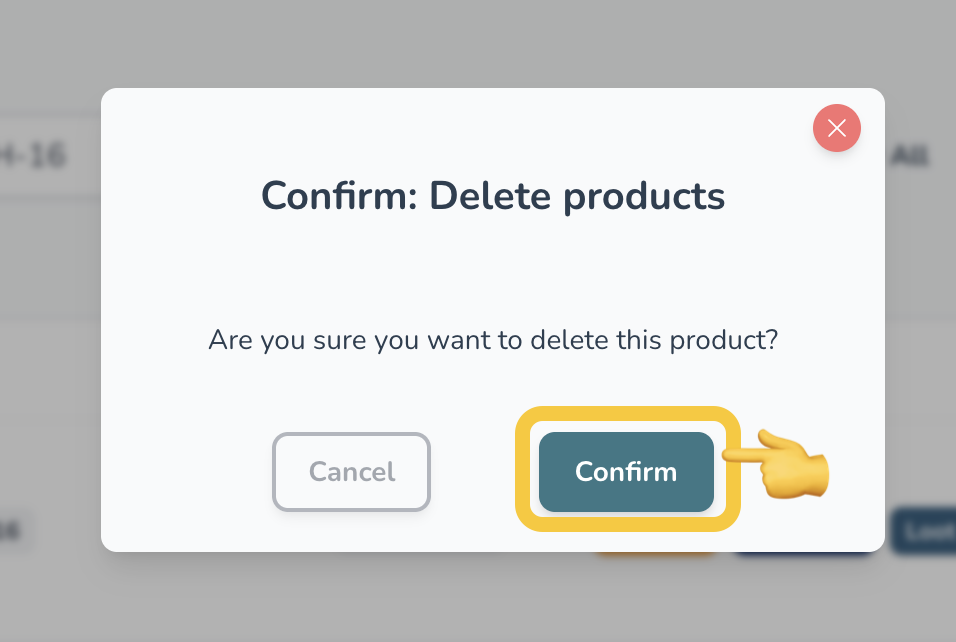
7️⃣ Click Confirm to complete the removal.
Important Notes
- Deleting a SKU will remove it from your Wherehouse catalogue.
- This action cannot be undone.
- If the SKU is linked to marketplaces, please ensure you understand the impact before deleting
- Removing a SKU from Wherehouse does not also remove it from your ERP, online store or marketplaces. This needs to be actioned on the relevant platforms.