
Overview 🤓
In addition to setting up Code (SKU) Remaps on the dashboard, Wherehouse also allows you to bulk manage remaps using an import/export sheet.
This method is ideal if you:
- Have a large number of remaps to set up
- Prefer working in spreadsheets
- Want to review or update remaps in bulk
How the Remap Sheet Works
The remap sheet is structured to show how SKUs are linked across platforms.
Column Structure
- Code (SKU)
code → This column shows the SKU from your System of Record- Platform Columns (e.g.
takealot,makro,shopify, etc.)
→ These represent SKUs on each additional connected platform
What You’ll See in the Sheet
- The
codecolumn will always contain the SKU from your System of Record
- Platform columns will show:
- A mapped SKU (if a remap already exists)
_blankif no remap has been set up
How to Add a Remap
To create a remap:
- Locate the product using the Code (SKU) column
- Find the relevant platform column
- Replace
_blankwith the SKU as it exists on that platform
Example
code | takealot | makro | shopify |
RUN-PRO-TY | _blank | _blank | _blank |
👉 Update to:
code | takealot | makro | shopify |
RUN-PRO-TY | RunPro-Teal | _blank | _blank |
This creates a remap:
- Takealot SKU
RunPro-Teal→ SOR SKURUN-PRO-TY
How to Set Up Code (SKU) Remaps via Import/Export
Step 1: Export the Code (SKU) Remaps Sheet
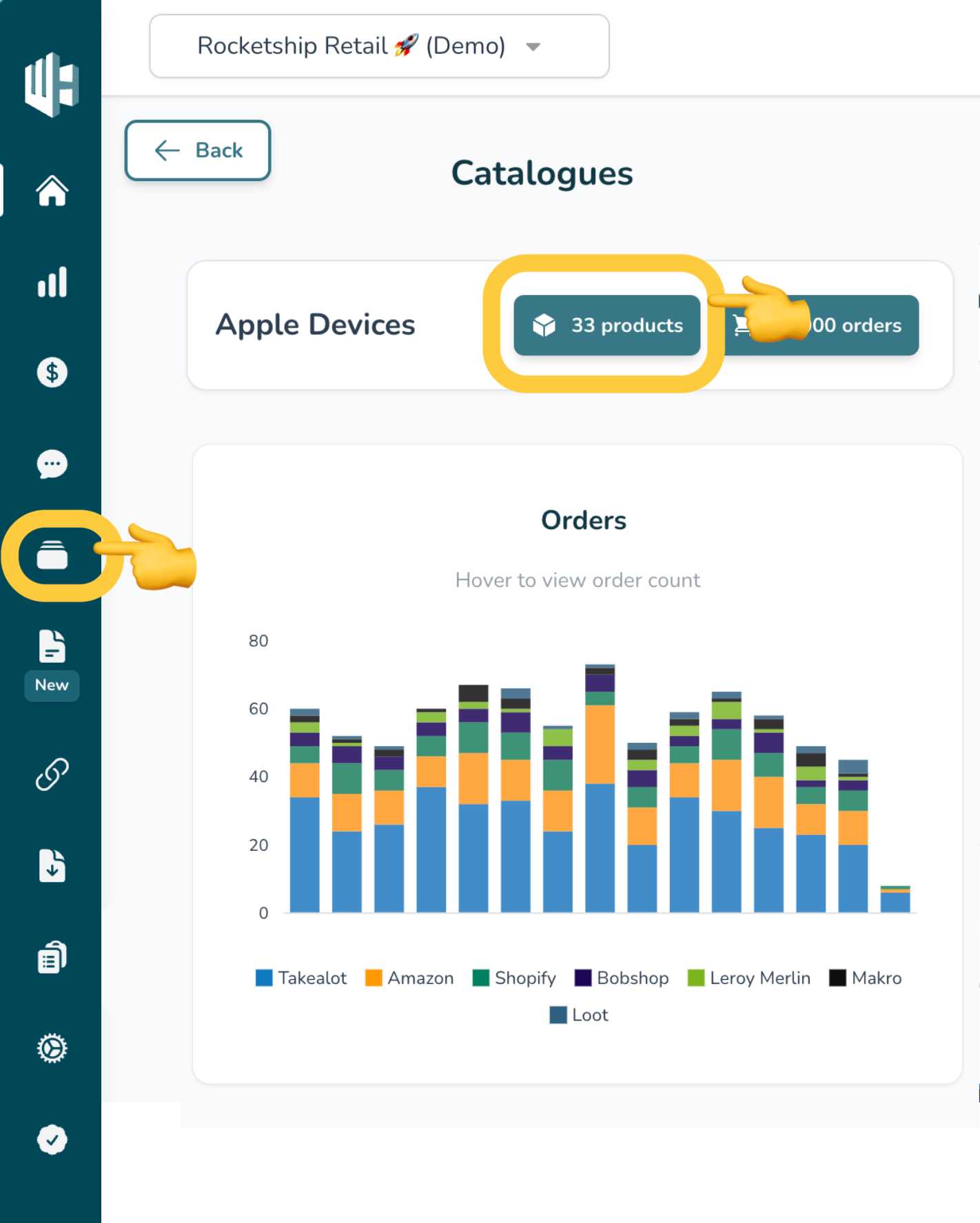
1️⃣ On the Wherehouse dashboard, navigate to relevant Catalogue via either:
- Clicking on the Products button of the relevant catalogue (the 📦 icon).
- OR clicking Catalogues in the left sidebar and selecting the relevant catalogue in the dropdown.
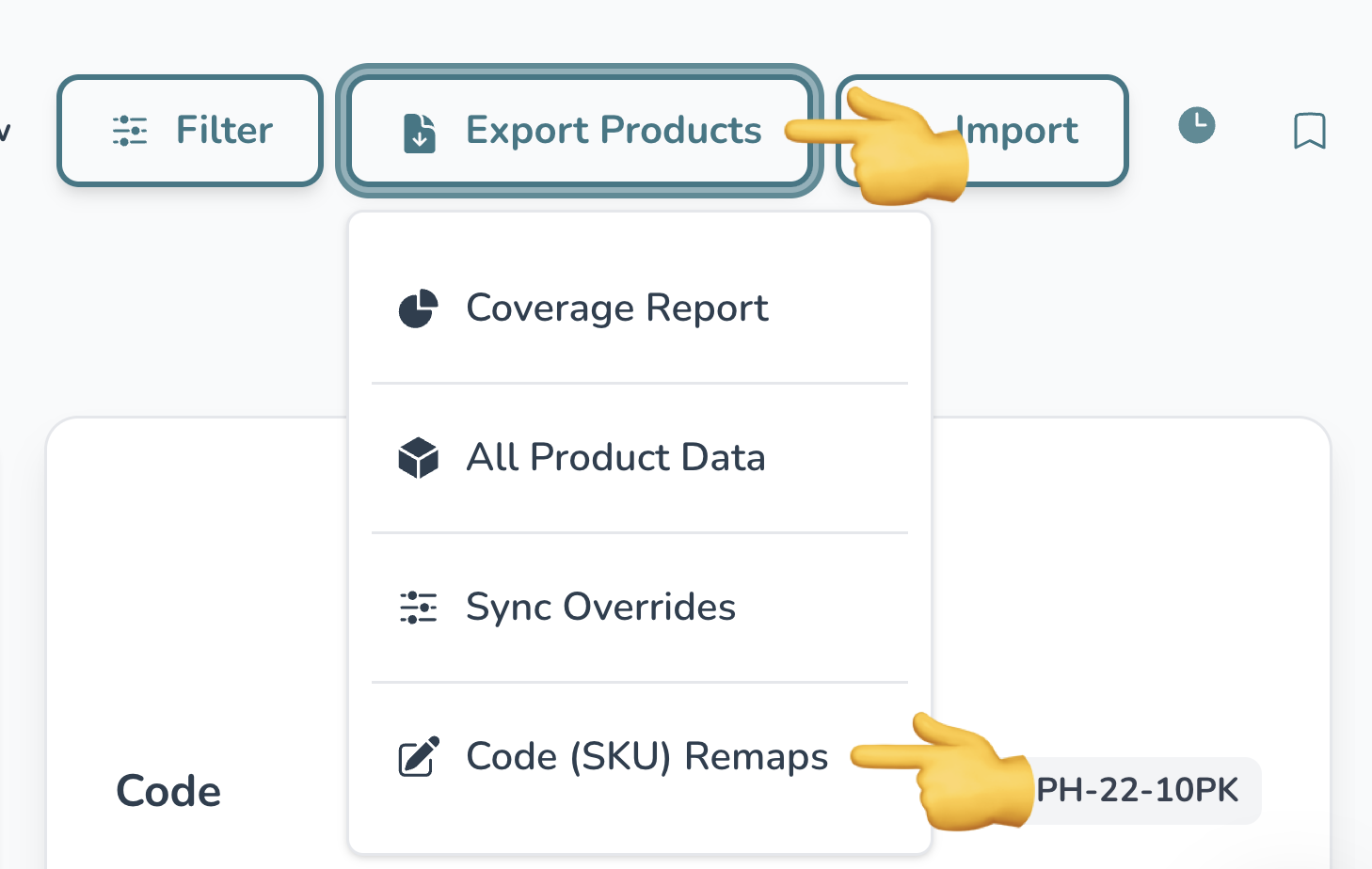
2️⃣ Click the Export Products button in the top-right corner.
3️⃣ Select Code (SKU) Remaps from the dropdown menu.
This downloads a CSV file containing all current SKUs and remaps.
Step 2: Update the Sheet
1️⃣ Open the downloaded file in Excel, Google Sheets, or your preferred editor.
2️⃣ Modify the sheet where needed:
- Do not edit the
codecolumn, as this is SKUs existing in the System of Record
- Only update the relevant values in the platform columns (e.g.
takealot) by replacing_blankwith the correct SKU where needed
If a SKU exists on your SOR and other platforms where it matches, the sheet won’t show this. You ONLY need to map in mismatched SKUs.
- Save the file. Ensure the file is saved as a .CSV after editing as other formats (like .XLSX) will result in an upload error.
Step 3: Import the Updated Sheet
Once your file is ready, head back to the Catalogues page on the Wherehouse dashboard.
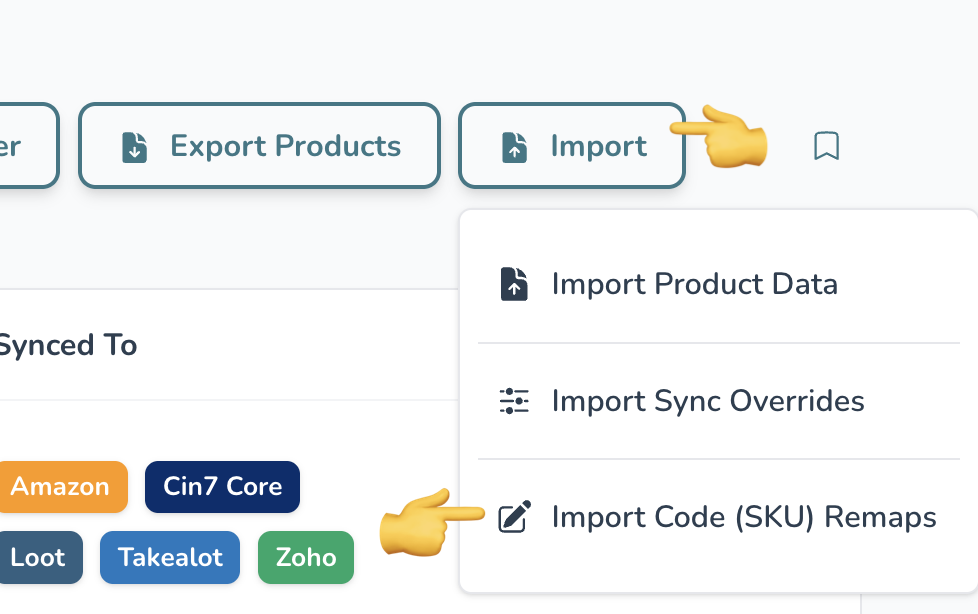
1️⃣ Click the Import button (top right).
2️⃣ Select Import Code (SKU) Remaps from the dropdown.
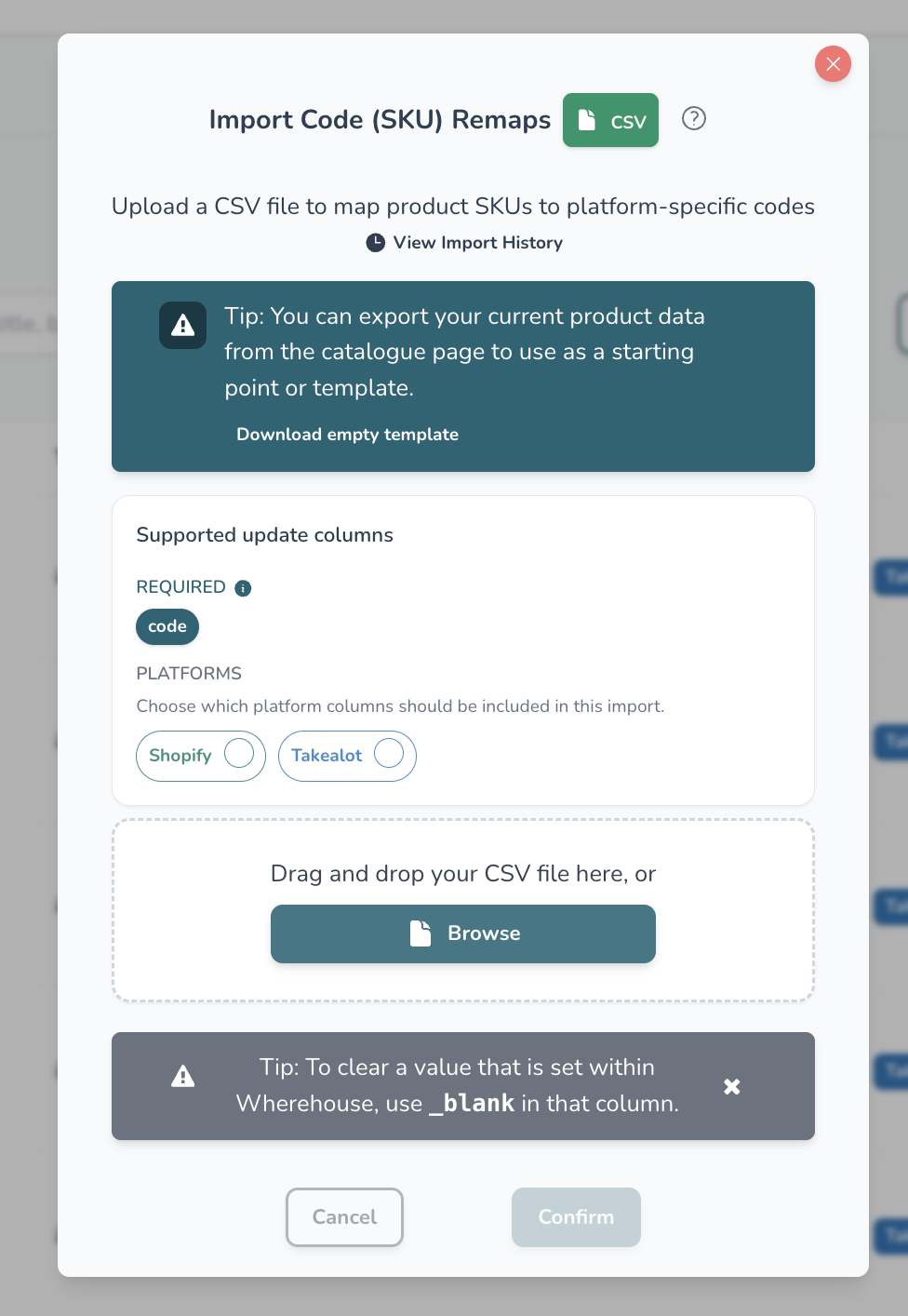
3️⃣ Select Platforms: In the modal that appears, tick the circles next to the platforms you wish to update with this import.
4️⃣ Upload: Drag and drop your CSV into the upload box or click Browse to select it.
5️⃣ Confirm: Click Confirm to start the upload.
Wherehouse will process the file and apply the remaps.
What Happens After Import?
- SKUs entered in platform columns will be mapped to the System of Record SKU
- Products will be merged and treated as one product
- Syncing of orders, stock, and pricing will function as expected
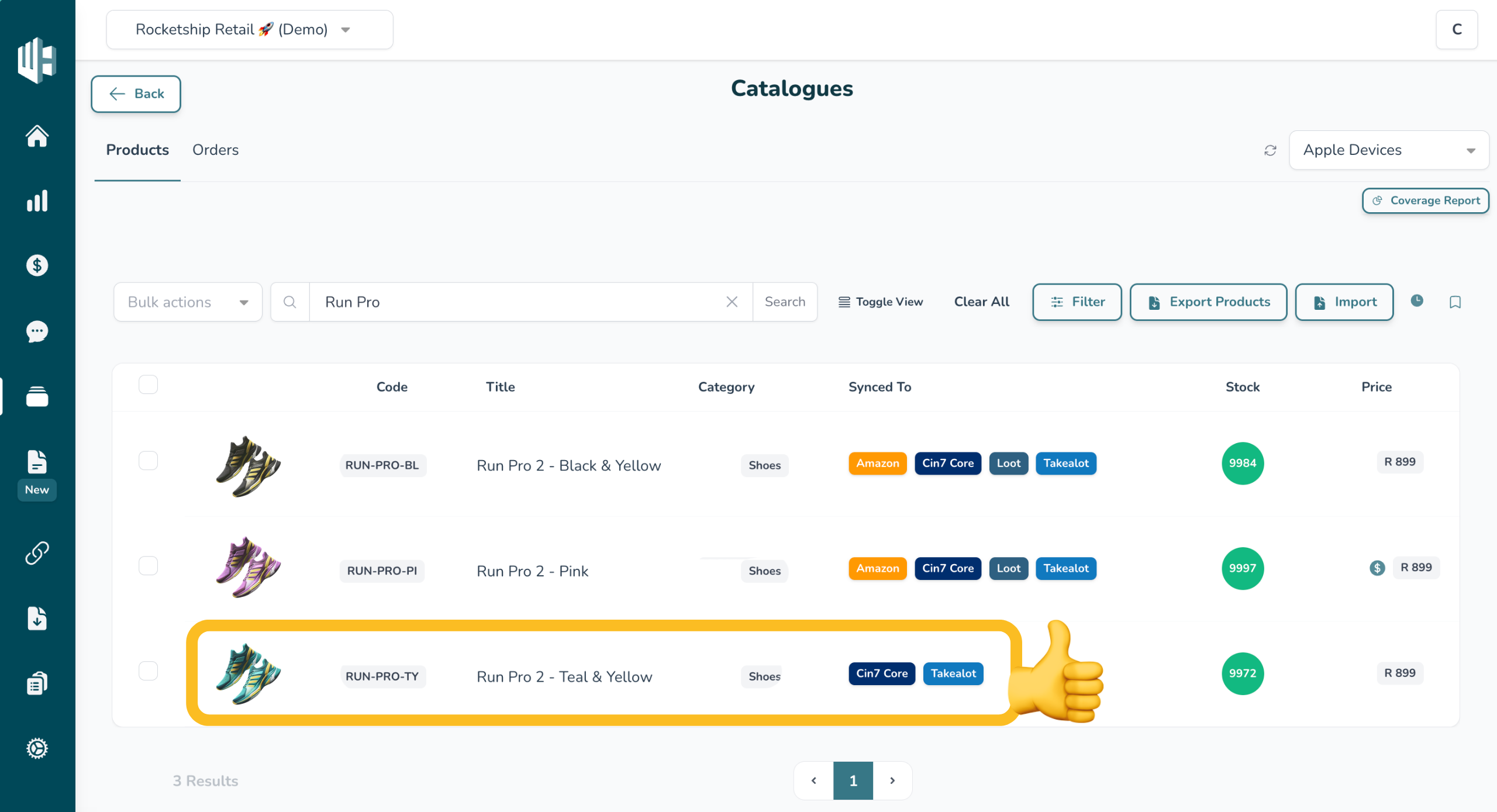
On your dashboard:
- Only the System of Record SKU will be displayed
- The product will show multiple “Synced To” tags
- Previously separate SKUs will no longer appear as separate products
⚠️ Important Tips
- Always map from the System of Record SKU (Code column)
- Ensure SKUs are entered exactly as they exist on the platform (case-sensitive where applicable)
- Avoid overwriting existing correct remaps unintentionally
- When in doubt, test with a small batch first before bulk importing
SKU Remaps via import/export are a powerful tool for bulk updates, but require careful handling.
For most users, we recommend:
- Using the dashboard for individual remaps
- Using import/export only for bulk changes