
Connect your Yuppiechef supplier dashboard to Wherehouse by adding a Wherehouse user to it. Wherehouse uses this user to sync your products and stock orders, so your team doesn't need to share its own login.
Steps on Wherehouse 👨💻
- Open Connectors
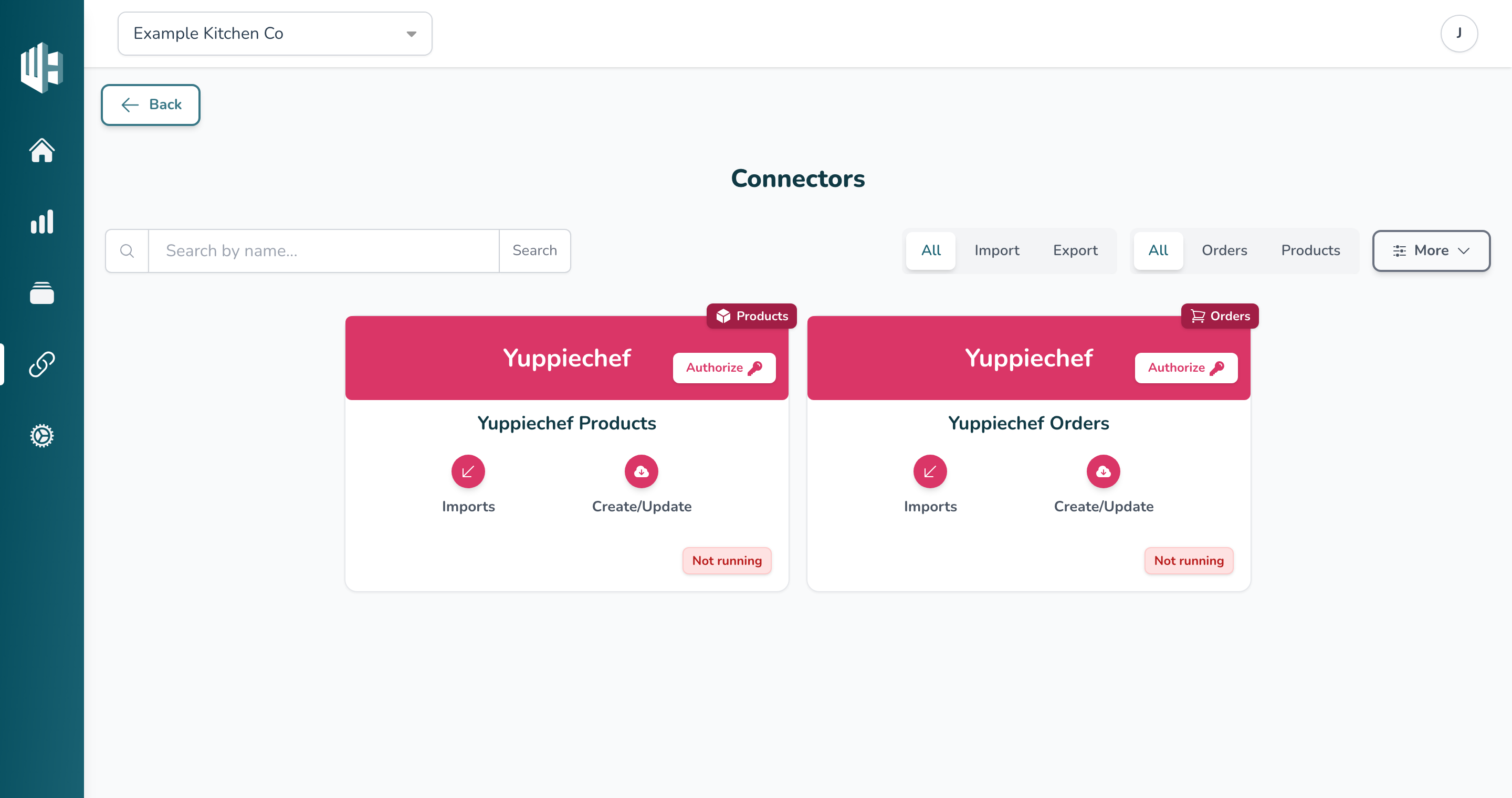
In the Wherehouse dashboard, select Connectors in the sidebar and find your Yuppiechef connectors.
- Click Authorize
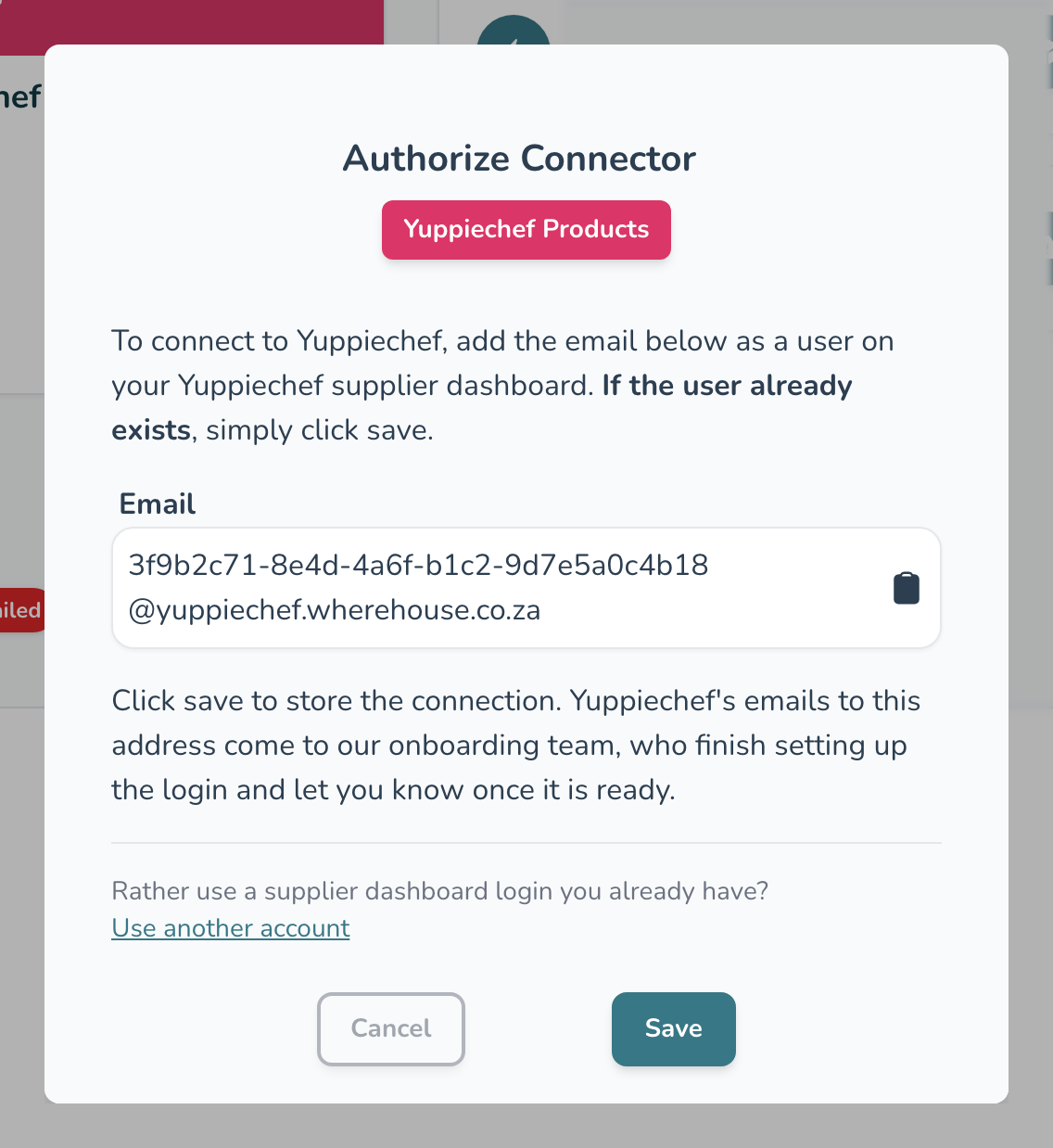
Click Authorize on one of the Yuppiechef connectors. A window opens with a unique email address for your Wherehouse user.
- Copy the email address
Click the clipboard icon next to the email to copy it.
Keep this window open until you've added the user on Yuppiechef and clicked Save. If you close it first, the next window shows a different email address.
Adding the Wherehouse user on Yuppiechef
- Log in to your supplier dashboard
Log in at yuppiechef.com with the account you use for your Yuppiechef supplier dashboard.
- Open Manage Users
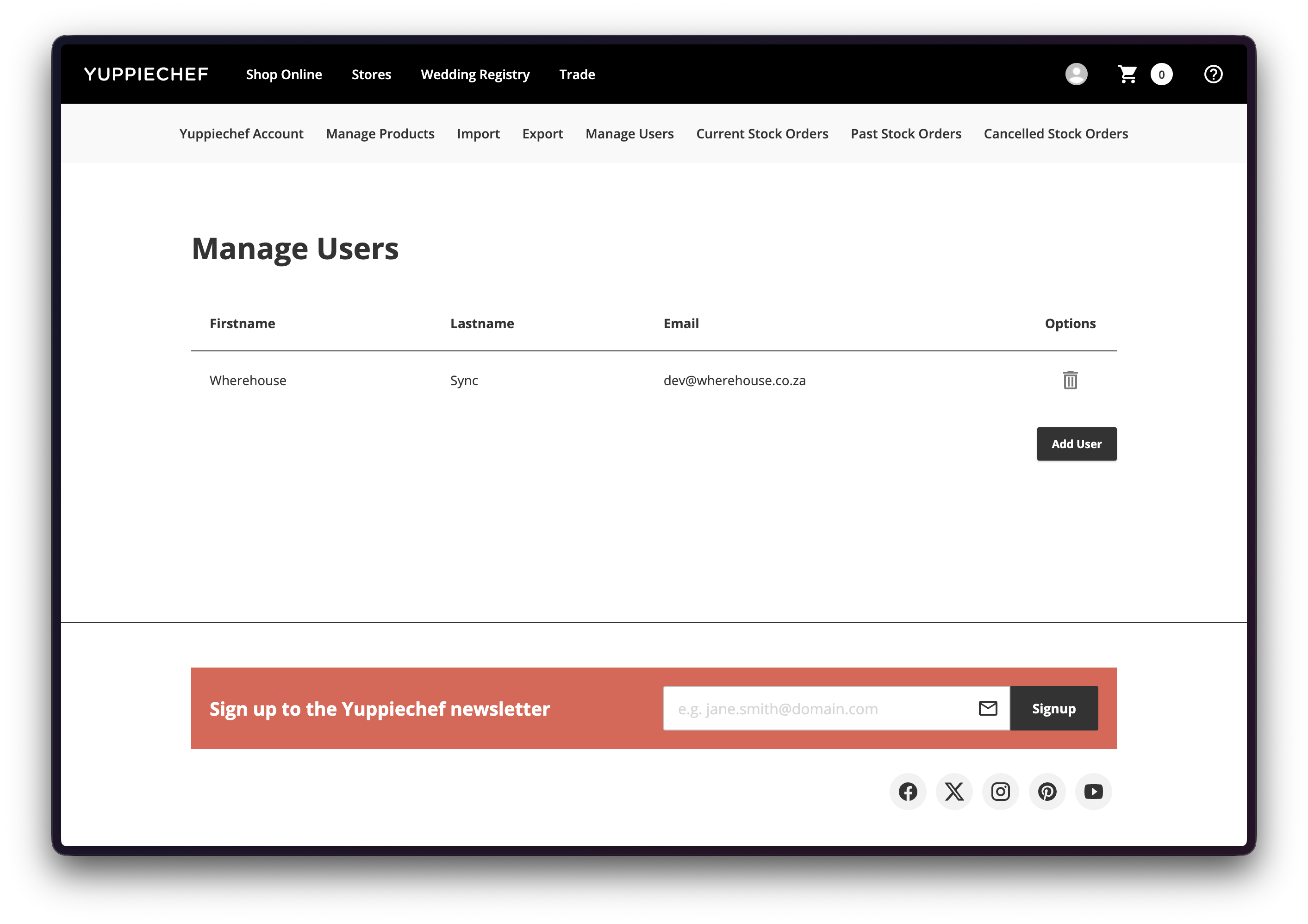
In the supplier dashboard menu, click Manage Users, then click Add User.
- Enter the user's details
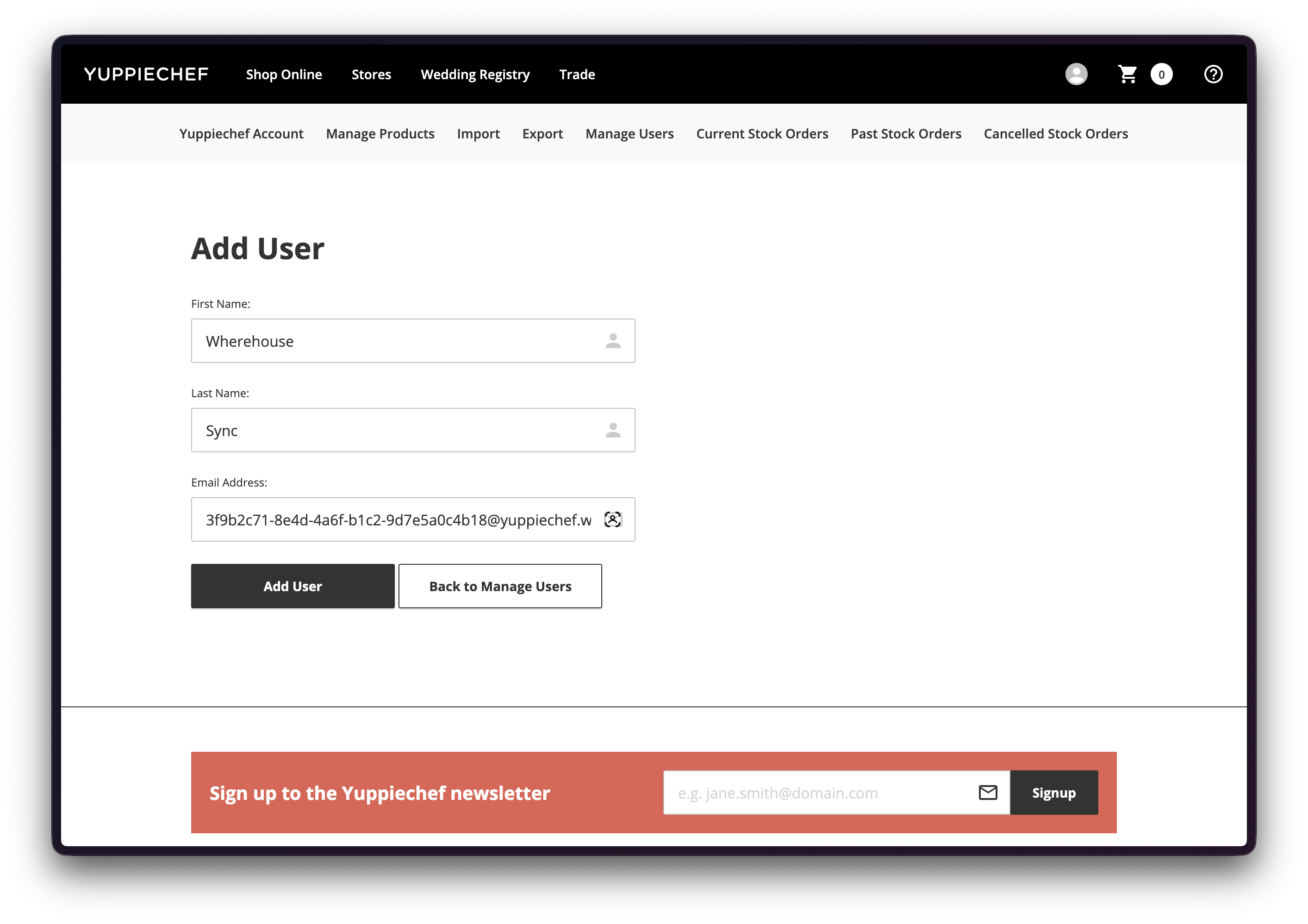
- First Name: Wherehouse
- Last Name: Sync
- Email Address: paste the email you copied from Wherehouse
- Add the user
Click Add User. ✅ The Wherehouse user now shows in your list of users.
Back to Wherehouse 👨💻
- Click Save
Go back to the Wherehouse window and click Save. Your connection is saved straight away.
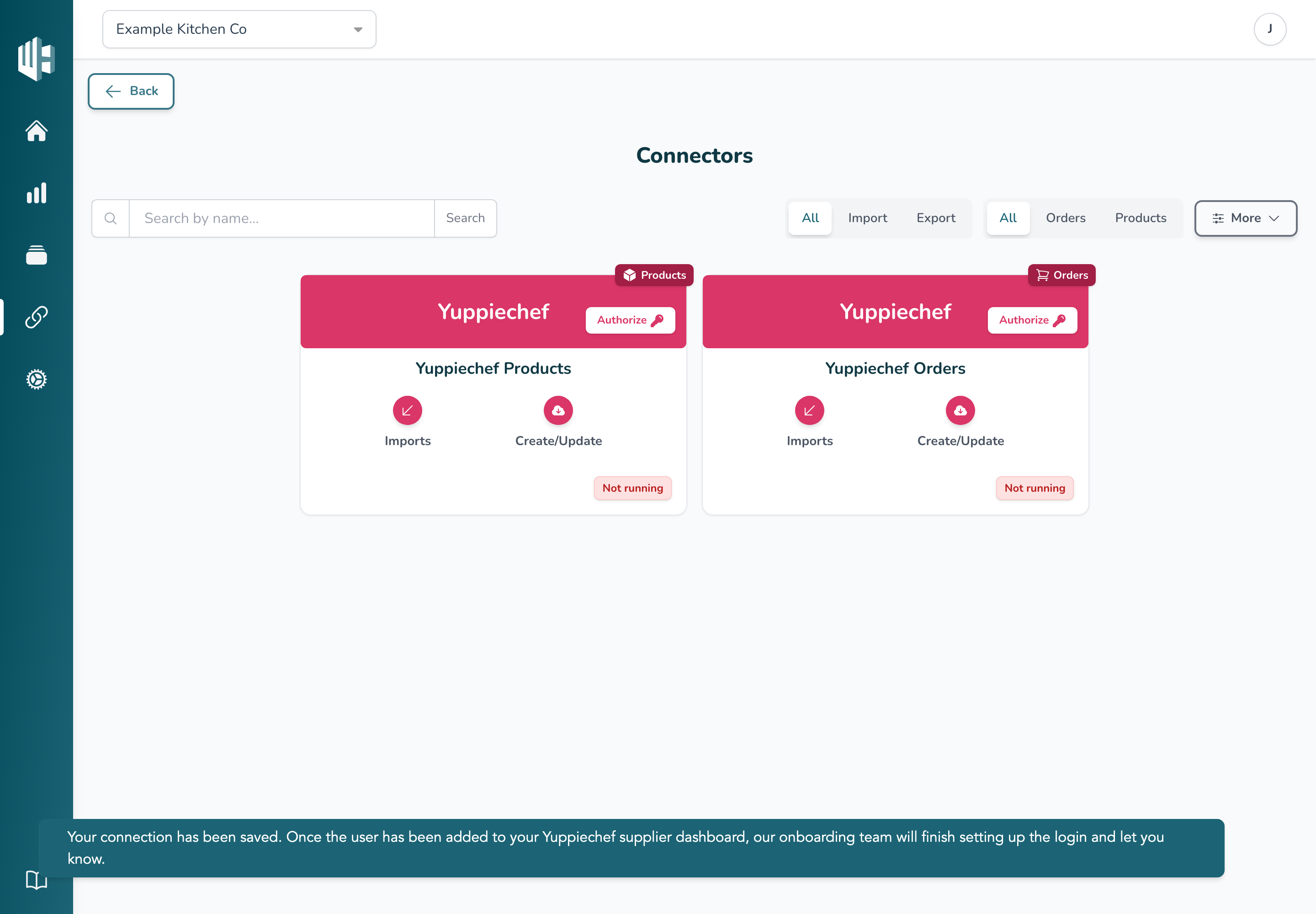
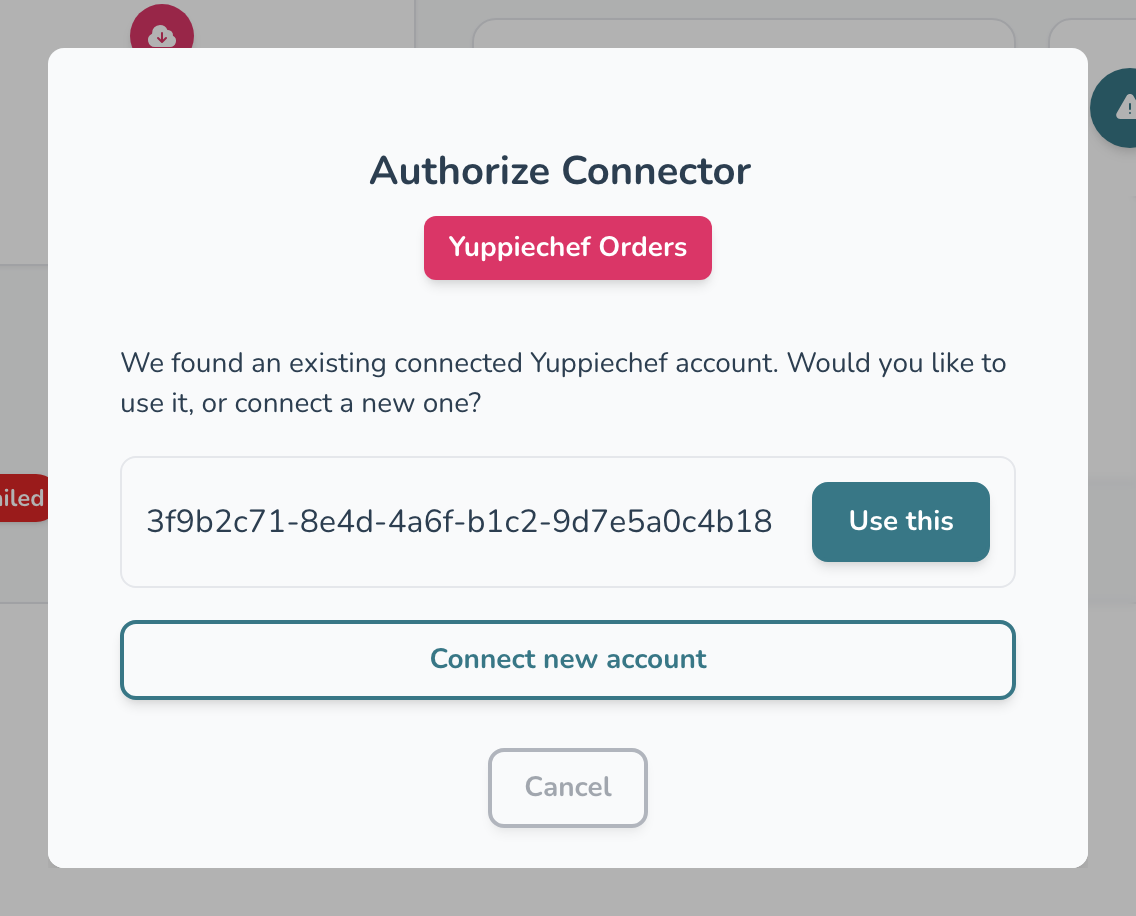
More than one Yuppiechef connector? You only add the user once. For each remaining Yuppiechef connector, click Authorize, then Use this next to the account you've already saved.
What happens next 🚀
Our onboarding team takes it from here. There's nothing else you need to do.
There may be a manual step required from our Ops team, please allow for 24 hours while we set this up.
- Any emails Yuppiechef sends to the new Wherehouse user come straight to our onboarding team.
- They finish setting up the user's login and your Yuppiechef connectors.
- We let you know once your products and stock orders are syncing.
Using your own login instead 🔑
Prefer that Wherehouse signs in with a supplier dashboard login you already have? In the Authorize window, click Use another account, enter that login's email and password, and click Save.
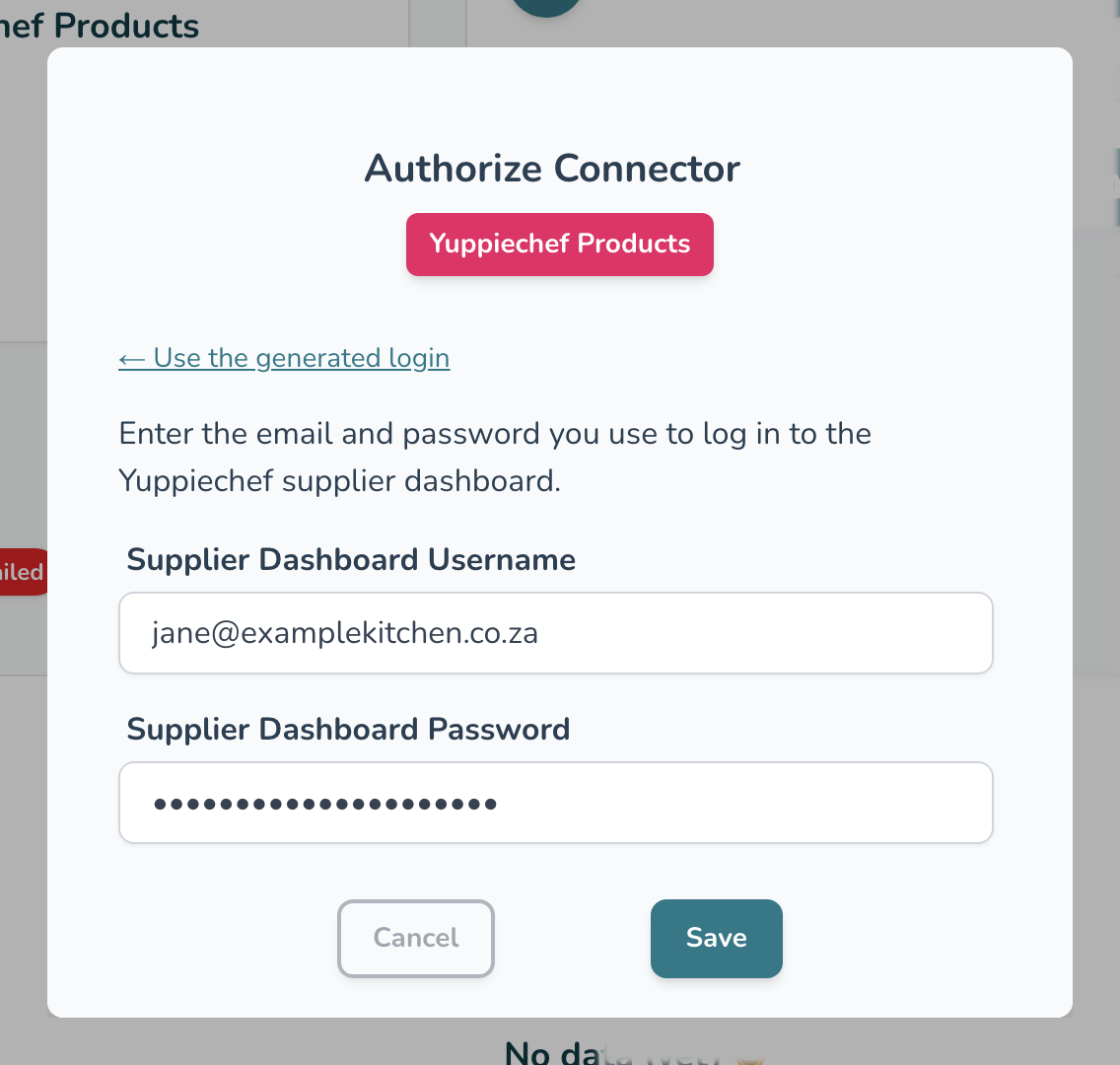
We recommend the dedicated Wherehouse user. If you use a personal login and its password changes, syncing stops until the new password is added in Wherehouse.
Important: keep the Wherehouse user on your Yuppiechef supplier dashboard. If it's deleted, syncing with Yuppiechef stops.
Need help? Contact your onboarding consultant or hello@wherehouse.co.za.