
In this guide, we'll plug Claude into the catalogues you already sync. Ask what to do next. Get answers that make you money.

Connecting ChatGPT instead?
How to Connect Wherehouse to ChatGPTAsk the low-hanging fruit
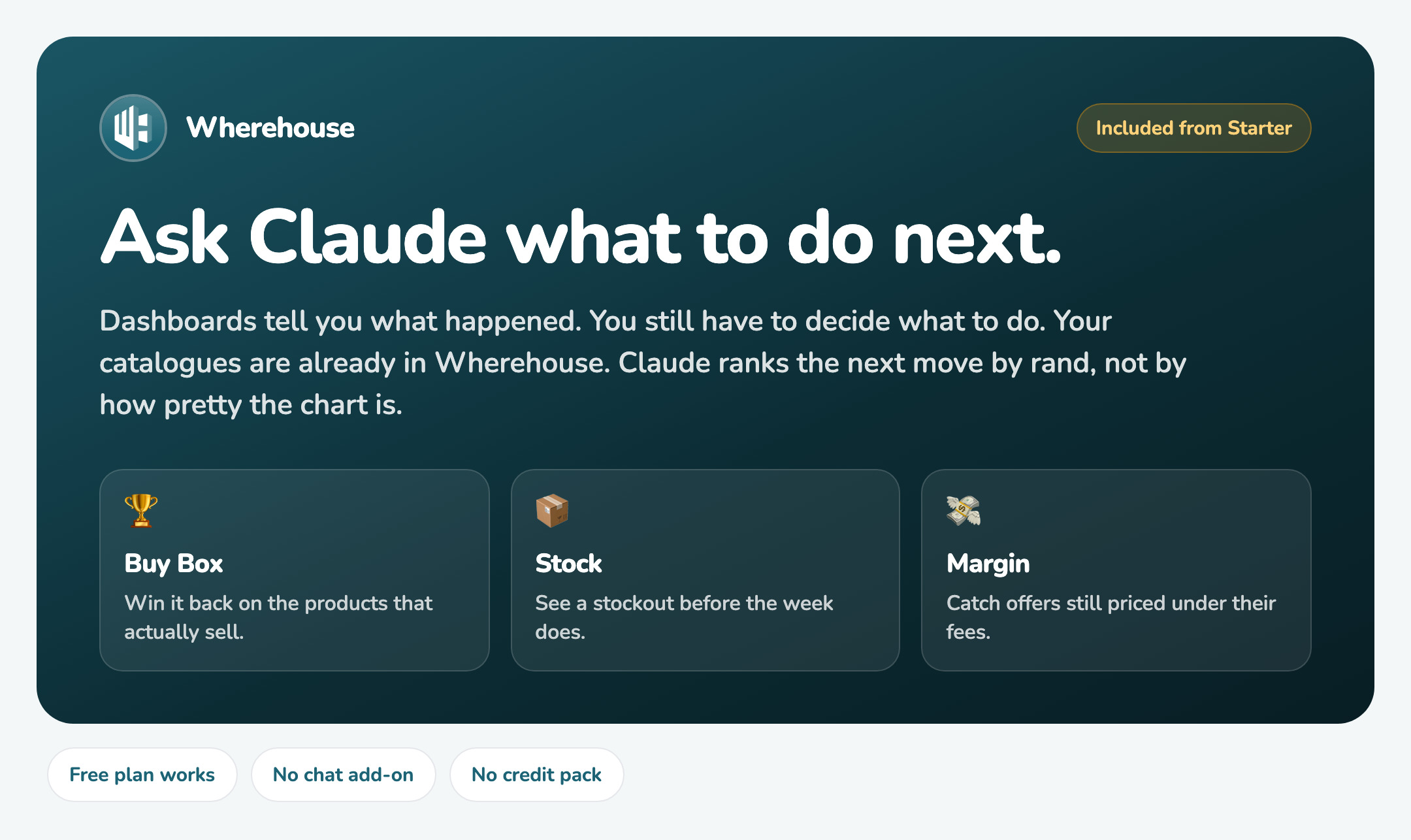
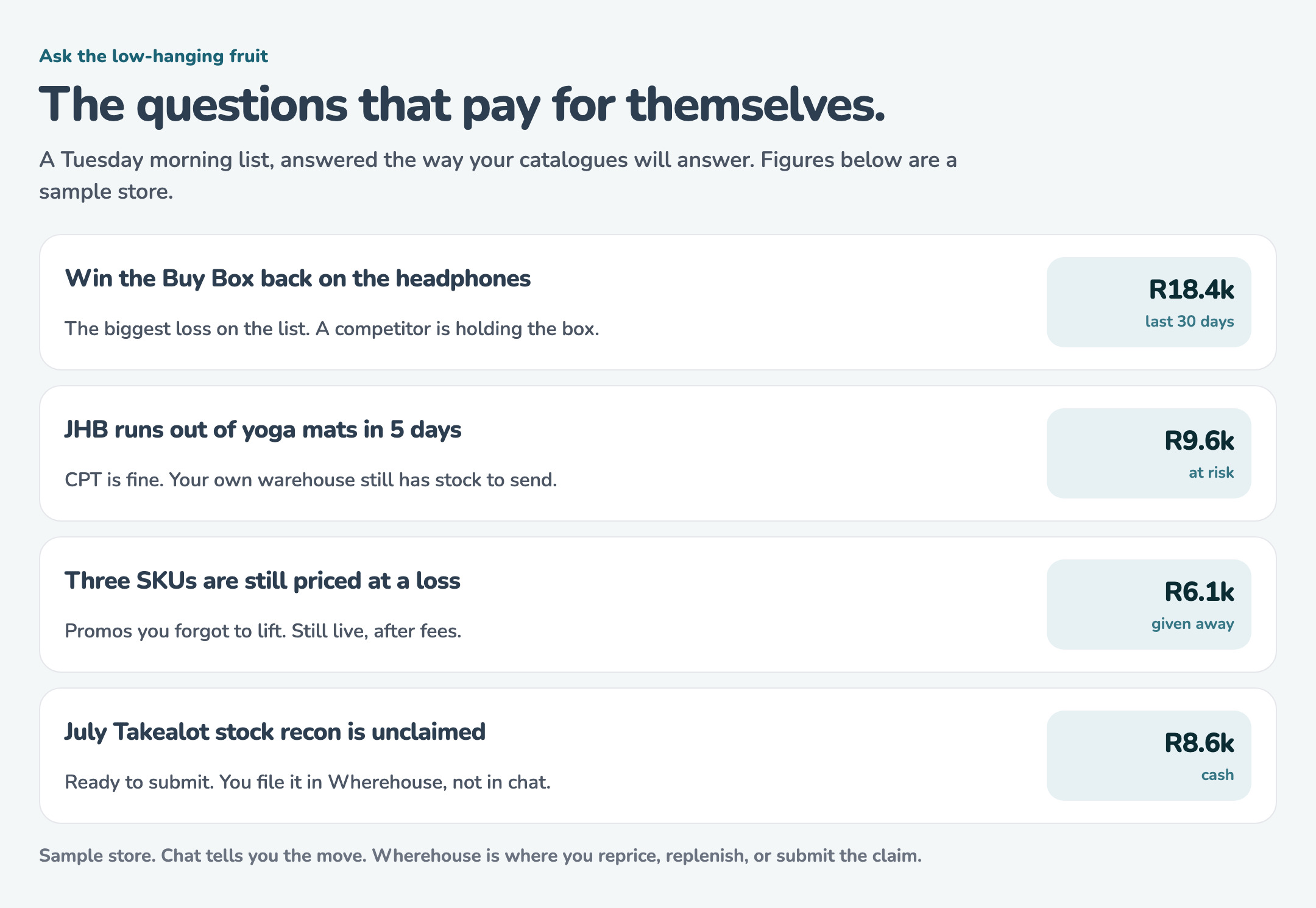
Start with what should I do today. Claude ranks the next move by rand: Buy Box, stock, losses, recon, listings. The card below is a sample store. Yours uses your catalogues.
Included from Starter. You bring Claude. We bring the live numbers. No chat add-on and no credit pack. A free Claude plan works.
Your catalogues, your rules
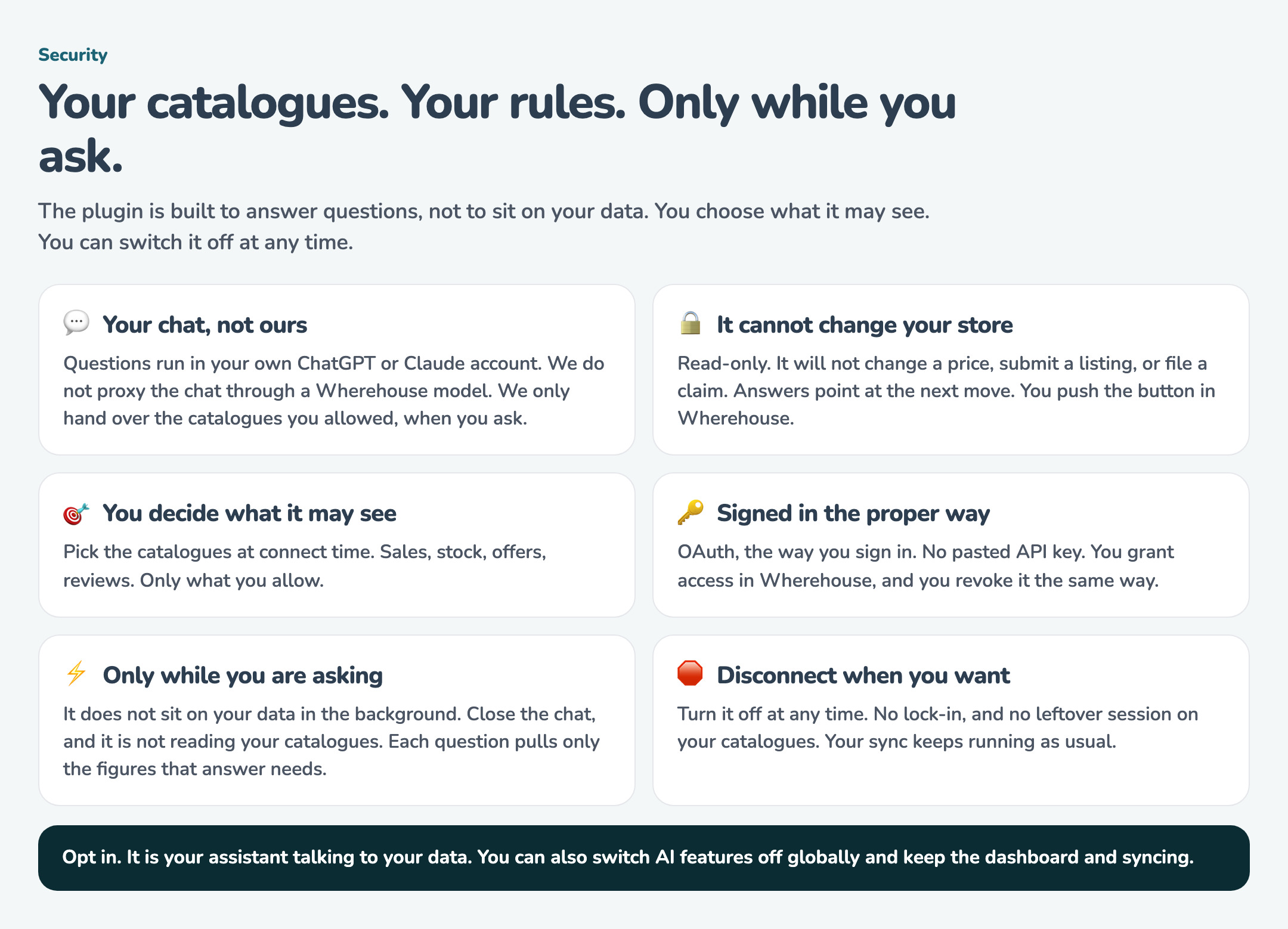
You choose what Claude may see. You can switch it off at any time. Your prompts stay in your Claude account. We only hand over the catalogue data you allowed, when you ask.
How to connect Claude
- Open Connected Apps
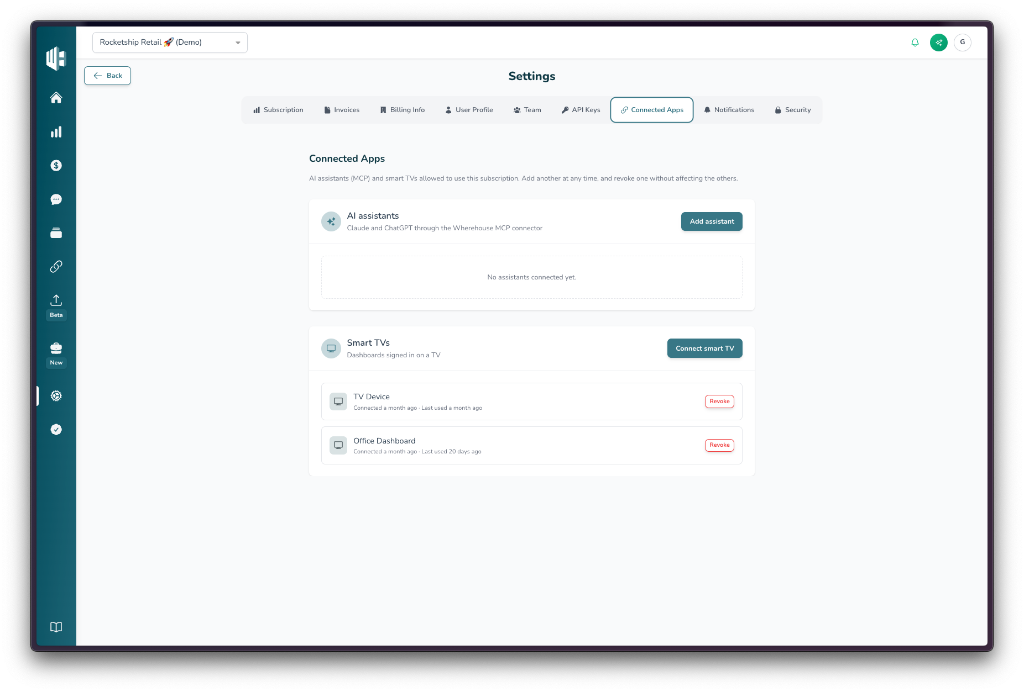
In Wherehouse, open Settings, then Connected Apps. Under AI assistants, click Add assistant.
- Copy the MCP URL
Copy the address under MCP URL. Use the copy button on the left of the field. You will paste this into Claude.
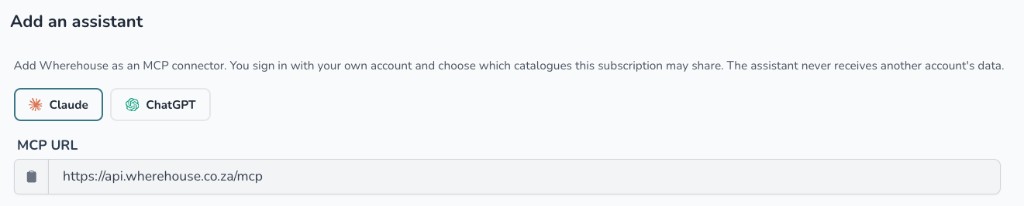
https://api.wherehouse.co.za/mcp- Open Connectors in Claude
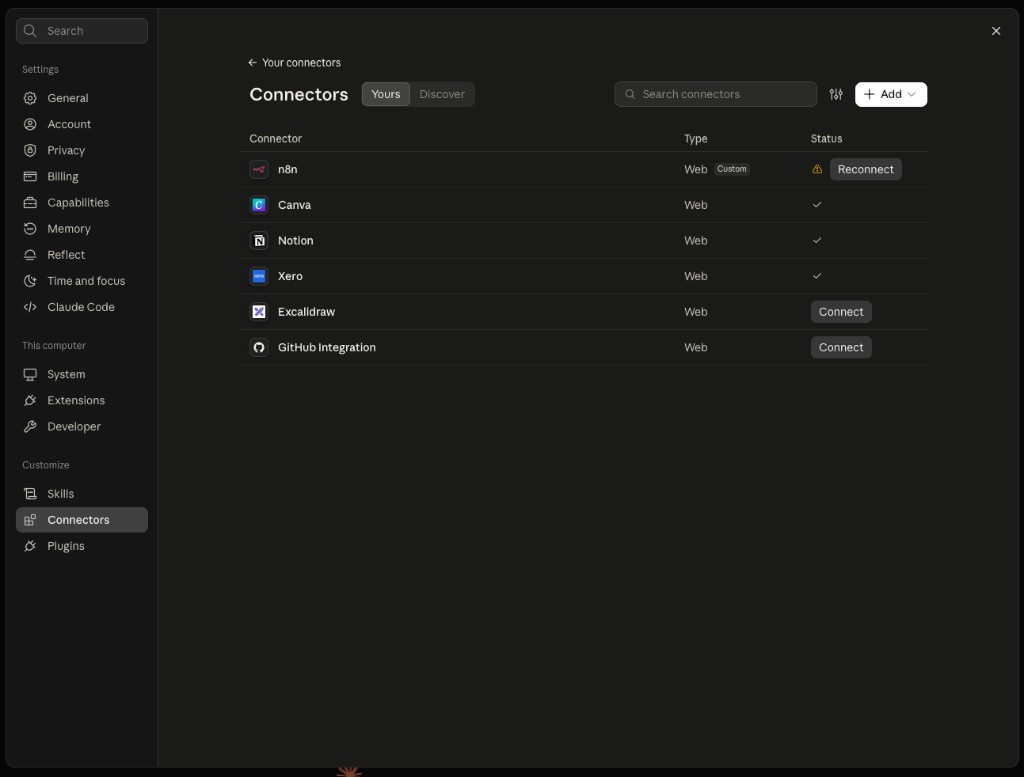
In Claude, open Settings, then Connectors. Click Add, then Add custom connector.
- Paste the URL
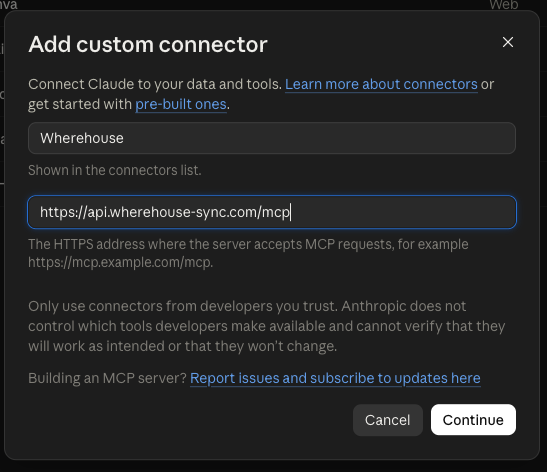
Name the connector Wherehouse. Paste the MCP URL you copied from Wherehouse into the address field. Click Continue.
- Keep the detected sign-in options
Claude detects how Wherehouse signs you in. Leave Sign in now selected. Under OAuth client, leave Register automatically selected. Click Add. Advanced can stay closed.
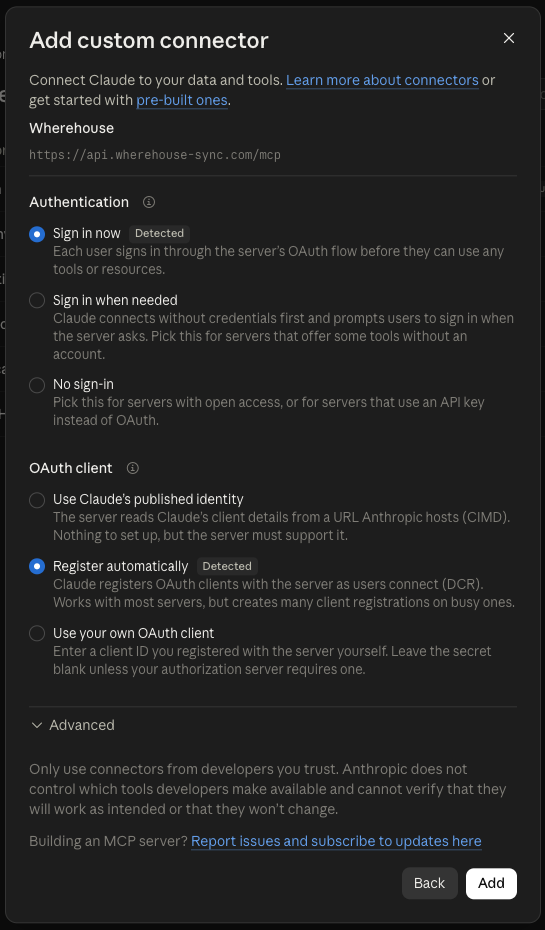
Sign in now means each person signs in with their own Wherehouse account before Claude can read anything.
- Allow access
Claude opens Wherehouse. Sign in if you are asked to. Choose the subscription. Under Catalogue access, choose the catalogues this assistant may read. Click Allow.
The screen is read-only: products and inventory, orders and return reasons, offers, pricing and the Buy Box, sales analytics and margin health, product reviews, and Takealot stock recon for the catalogues you pick.
After you connect 📦
- Ask Claude about stock, open orders, or which offers are winning the Buy Box on a catalogue you shared.
- The assistant shows under Settings, then Connected Apps in Wherehouse. Click Revoke there to disconnect it.
- Each person connects with their own Wherehouse login. Your catalogues stay on your account.
Access stays read-only. Claude can look at your data. It cannot edit products, stock, prices, or orders.